VerseIsland
Feed Learn Leaderboard Guides Reference Explore Search Docs Verse Library
Sign in
Feed Learn 📖 Codex Leaderboard Guides Reference Explore Search Docs Verse Library
Fortnite › General · Up to Fortnite · General · 112 of 123 in General
Browse Fortnite

Using Notes in Unreal Editor for Fortnite

Providing feedback to collaborators and reminders for yourself are key parts of the iterative project workflow. Notes is a feature within UEFN that brings this real-time feedback loop directly into the editor.

In this article, we’ll give an overview of the feature including creating, _reviewing, _and _resolving _notes.

Creating Notes

Let’s start creating some notes! The easiest way to get started is by pressing the shortcut C. This will replace your cursor with a blue gizmo that aligns with the mesh you are pointing to. Click on the desired location within your level to create an Anchored note—a note attached to a specific object in your level.
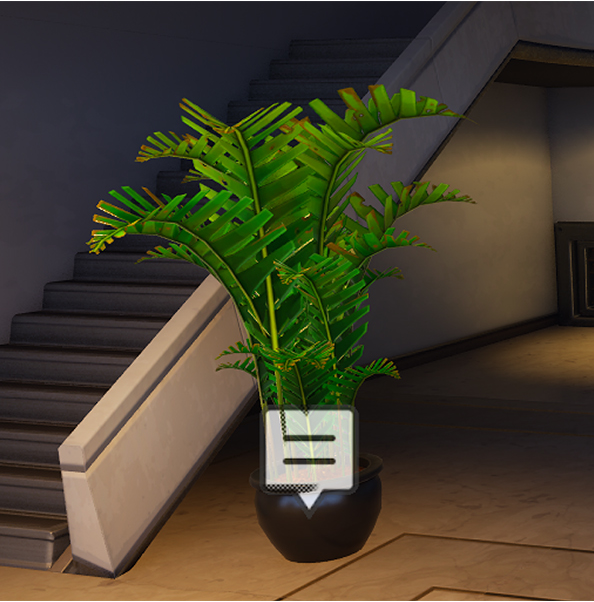
The letter icon in the image represents a note left on an asset.

This will open the editing widget where you can type a description to give context to your note.

Notes do not get counted as part of your project memory calcualtion. Notes are a cloud feature that loads note data into transient actors that do not get saved as a file.

A simple description may be all you need since Notes are captured with a screenshot of the viewport at the time of creation as well as other contextual data to help you or your collaborators navigate back to the original perspective from which they were created. Simply click Create, and the note is immediately accessible to you and any collaborators working on the project.

You're reading a preview

The full reference is free for BrainDeadGuild Discord members — sign in to read it all, or open the original at the source.

Sign in with Discord — free for members Read the original at Epic Games

Sign in with your BrainDead.TV / BrainDeadGuild Discord account for full access.

Comments

    Sign in to vote, comment, or suggest an edit. Sign in
    📄
    Source
    Epic Games

    © Epic Games. Official Epic developer documentation, shown here as a reference with a link to the original. All rights remain with Epic Games. Terms ↗

    View original Sources & licensing
    Request removal
    Last updated Feb 10, 2026
    Keep exploring
    More in General · 112 of 123
    Prev
    using fortnite data api in fortnite
    Next
    using the spatial thermometer in fortnite creative
    Browse all files in this folder (A–Z)
    Next up
    • 2. Click **Notes** in the **Window** menu in the UEFN [menu bar
    Related topics
    • 30 10 Fortnite Ecosystem Updates And Release Notes In Creative And Unreal Editor For Fortnite Release Notes
    • Build A Game In Unreal Editor For Fortnite Building & Props
    • Whats New In Unreal Editor For Fortnite Release Notes
    • Guide To Uefn Controls For Creative Users In Unreal Editor For Fortnite Input & Controls
    • Using Notes In Unreal Editor For Fortnite General

    Related

    Open in graph →

    Related topics

    • 30 10 Fortnite Ecosystem Updates And Release Notes In Creative And Unreal Editor For Fortnite
    • Build A Game In Unreal Editor For Fortnite
    • Whats New In Unreal Editor For Fortnite
    • Guide To Uefn Controls For Creative Users In Unreal Editor For Fortnite
    • Using Notes In Unreal Editor For Fortnite
    VerseIsland · an archipelago of Verse & UEFN knowledge
    🗺️ Island atlas Learn Guides History About & Press Sources & Licensing Status

    Not affiliated with Epic Games. Fortnite, UEFN, Unreal Engine, and Verse are trademarks of Epic Games, Inc. Content is attributed to its source — see Sources & Licensing.

    🦜

    Scout · your island guide

    The Isle of Verse