
Foliage Mode
Foliage Mode
Foliage Mode provides a way to quickly create forests and woods on your terrain to make realistic-looking landscapes. Use the Foliage tools to determine how to add trees, bushes, flowers, and more to your project. This editing mode works with Landscape Mode.
Foliage Mode provides a way to quickly create forests and woods on your terrain to make realistic-looking landscapes. Use the Foliage tools to determine how to add trees, bushes, flowers, and more to your project. This editing mode works with Landscape Mode.
How It Works
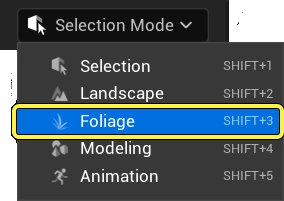
To access Foliage Mode, click the Selection Mode dropdown and select Foliage Mode. The Foliage Mode panel opens to the left of the viewport window. (For in-depth information on this mode, see Foliage Mode for Unreal Engine.)
To use the Foliage Mode tools, open the Content Browser, then drag selected foliage static meshes from the Environment > Foliage folder into the Mesh List. You can add more than just trees or grasses — you can add any type of static mesh to the Mesh List.
You're reading a preview
The full reference is free for BrainDeadGuild Discord members — sign in to read it all, or open the original at the source.
Sign in with your BrainDead.TV / BrainDeadGuild Discord account for full access.