
Painting the Terrain
Painting the Terrain
Another way to change the appearance of your terrain is by painting the weight map layers. When you select either MI_Landscape_Chpt2 (Apollo) or MI_Landscape_Chpt4 (Asteria) for your terrain material, each has built-in layers that you can use to paint on top of the first layer.
Another way to change the appearance of your terrain is by painting the weight map layers. When you select either MI_Landscape_Chpt2 (Apollo) or MI_Landscape_Chpt4 (Asteria) for your terrain material, each has built-in layers that you can use to paint on top of the first layer.
Select Paint from the Landscape Mode stages and scroll down to Target Layers. You’ll see the different layers of the Landscape material. Each layer is numbered, these layers are defined in the Landscape material, and they automatically populate the list of Target Layers in the Landscape tool Paint mode.
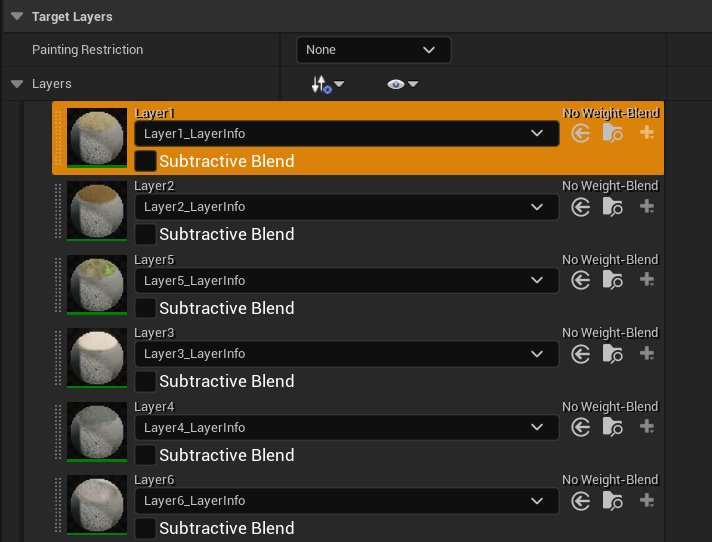
You can use these layers to paint paths or the side of the road, to create dirt patches, and more. Select a layer from the dropdown menu to paint onto the landscape material outside the mouth of your cave, then change your Paint tool settings to:
You're reading a preview
The full reference is free for BrainDeadGuild Discord members — sign in to read it all, or open the original at the source.
Sign in with your BrainDead.TV / BrainDeadGuild Discord account for full access.