
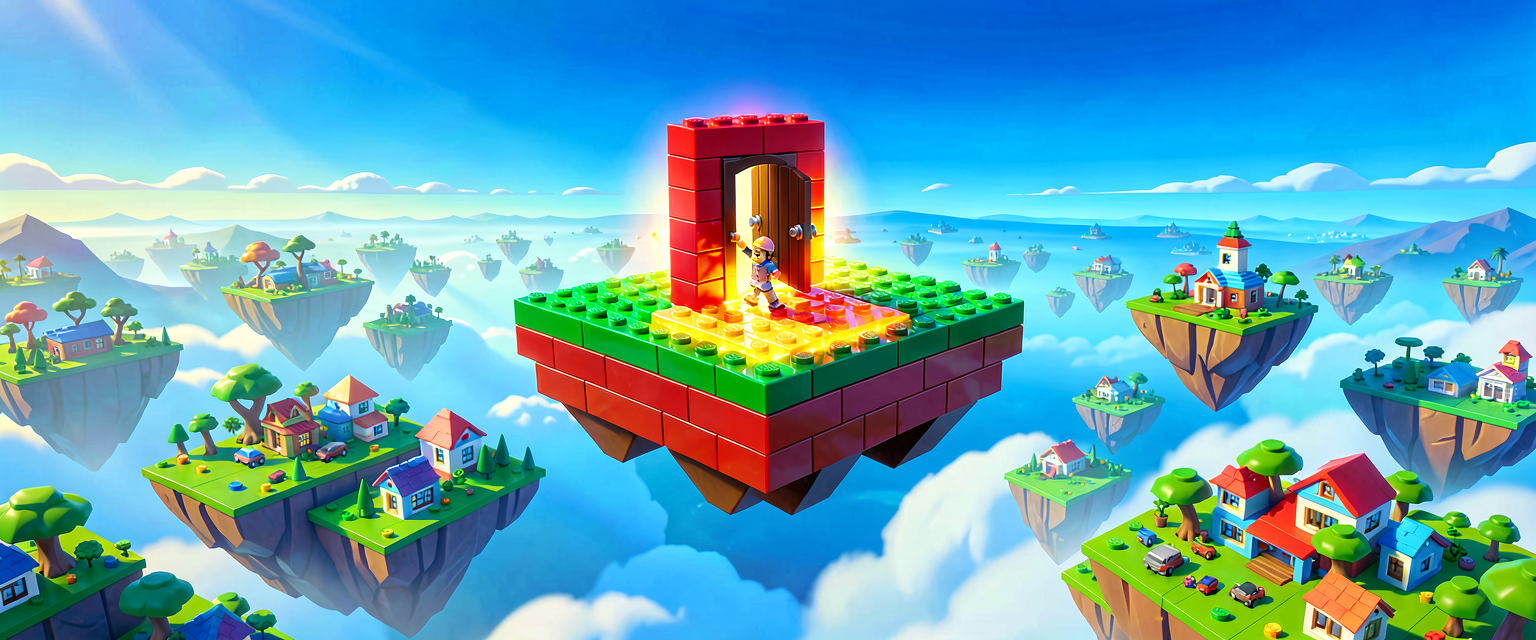
Build a Tiny Puzzle Island: Level Design for Beginners
Build a Tiny Puzzle Island: Level Design for Beginners
Welcome, future game designer! Today, we are going to build a small, fun puzzle island. You will learn how to plan your island so it is easy to play and super fun. We will use Verse to make the pieces move when the player touches them.
What You'll Learn
- How to keep your island small and tidy.
- How to add one new idea at a time.
- How to make a puzzle piece move with code.
- How to place objects so they look good on screen.
How It Works
Think of your island like a LEGO set. If you have too many bricks, it is hard to see what you are building. This is called level design. It means planning where things go.
Rule 1: Keep It Compact
When we use a top-down camera, we look down from the sky. If your island is too big, the player cannot see everything. Imagine trying to read a book when you are too far away. You need to keep your puzzle pieces close together. A good size is about 4 by 6 tiles. This fits perfectly on the screen.
Rule 2: One New Idea at a Time
Do not give the player ten rules at once. That is confusing! Start with one simple rule. For example, "Step on the red tile to move the door." Once they understand that, add a second rule. This helps them learn without feeling lost.
Rule 3: Make Them Think
A good puzzle makes the player pause. They should ask, "How do I solve this?" You can do this by placing obstacles. Maybe a wall blocks the path. The player must find a way around it. This makes the game feel smart and fun.
Let's Build It
We will build a simple "Push the Box" puzzle. The player pushes a box onto a target. When the box lands, a light turns on.
Step 1: Place Your Objects
- Open the Level Editor.
- Place a Player Spawn point. This is where the player starts.
- Place a Box Prop. This is the object the player will push.
- Place a Target Zone. This is a flat area on the ground.
- Place a Light above the target. It should be off at first.
Step 2: Add the Code
We need Verse code to make the box move and the light turn on. We will use a Trigger Device. This is an invisible box that detects when something enters it.
Here is the code for a Verse Device that handles the push.
# This is a Verse Device. It lives in your island.
# It watches for the player to push the box.

using { /Fortnite.com/Devices }
using { /Fortnite.com/Characters }
using { /UnrealEngine.com/Temporary/SpatialMath }
using { /Verse.org/Simulation }

puzzle_manager := class(creative_device):

    # Wire these devices up in the editor's Details panel.
    # Select this device, then drag the matching object into each slot.

    # This is the trigger_device placed on the target zone.
    @editable
    PushTrigger : trigger_device = trigger_device{}

    # This is the customizable_light_device placed above the target.
    @editable
    TargetLight : customizable_light_device = customizable_light_device{}

    # This script runs when the device starts.
    OnBegin<override>()<suspends>: void =
        # Subscribe to the trigger's agent-entered event.
        # TriggeredEvent fires when an agent (player) activates the trigger.
        PushTrigger.TriggeredEvent.Subscribe(OnTriggerActivated)

        # Keep the device running so events keep firing.
        Sleep(Inf)

    # This function runs when the trigger is activated.
    OnTriggerActivated(Agent : ?agent): void =
        # Turn on the light!
        TargetLight.TurnOn()
        # You could also play a sound here.```

### What Does This Code Do?

1.  **`@editable`**: This tag lets you drag and drop real devices from your island into the script's slots inside the editor's Details panel. It is like labelling your LEGO bins so you always grab the right brick.
2.  **`TriggeredEvent.Subscribe`**: This is an **event**. An event is something that happens in the game. Here, it happens when a player steps into the trigger device.
3.  **`TurnOn()`**: This turns the light on. It is like flipping a light switch.

### Step 3: Connect the Dots
In the editor, you must wire your objects to the device's editable slots.
*   Select your **puzzle_manager** device in the editor.
*   In the **Details** panel, find the `PushTrigger` slot. Drag your trigger device from the Outliner into that slot.
*   Find the `TargetLight` slot. Drag your customizable light device into that slot.

Now, when the player steps into the trigger zone, the light turns on!

## Try It Yourself

Can you make the light turn **off** when the player walks away?

**Hint:** Look for an event called `EndedEvent` on the `trigger_device`. This event happens when something leaves the trigger. You can use `TurnOff()` to turn the light off.

## Recap

Level design is about planning your island. Keep it small so players can see everything. Add one new rule at a time. Make players think by adding puzzles. With Verse, you can make those puzzles come alive!

## References

*   https://dev.epicgames.com/documentation/en-us/uefn/verse-starter-template-2-defining-boards-for-game-in-unreal-editor-for-fortnite
*   https://dev.epicgames.com/documentation/en-us/fortnite/fortnite-glossary
*   https://dev.epicgames.com/documentation/en-us/fortnite-creative/fortnite-creative-glossary
*   https://dev.epicgames.com/documentation/en-us/uefn/verse-starter-template-3-designing-levels-in-unreal-editor-for-fortnite
*   https://dev.epicgames.com/documentation/fortnite/verse-starter-03-designing-levels-for-in-unreal-editor-for-fortnite
Verse source files
- 01-device.verse · device
Turn this into a guided course
Add 3. Designing Levels to your free study plan — we'll suggest related pages and stitch the lot into one compile-checked, self-guided lesson with worked examples and quizzes.
References
Original tutorial generated by Verse Island from the Verse/UEFN knowledge base, with references to the Epic Games sources above. Code is validated against the knowledge base.