
Level Up: How to Set Up Your Fortnite Island for Verse
Level Up: How to Set Up Your Fortnite Island for Verse
You’ve got the vision. You’ve got the code. But right now, your island is just an empty void with a Player Spawn Pad staring at you like it’s waiting for a bus that left three hours ago. Before you can write Verse to make platforms vanish, lights flash, or enemies spawn, you need to build the stage.
In this tutorial, we’re going to set up a basic level structure that Verse can actually "see" and interact with. We’ll move beyond the default template and give our game some actual props and devices to play with. Think of this as laying the foundation for a skyscraper; if the ground is shaky, your Verse code is going to crash harder than a player who missed their jump pad.
What You'll Learn
- The Scene Graph Basics: Why your island is a hierarchy of objects, not just a flat map.
- Setting Up Devices: Connecting the Player Spawn Pad to your Verse logic.
- Introducing Props: Using Creative Props as the actors in your Verse script.
- The "Show/Hide" Concept: Preparing objects for visibility toggling (a core Verse mechanic).
How It Works
In Fortnite Creative, you’re used to dragging and dropping devices. In Verse, those devices are just Entities. An Entity is any object in your game world—a player, a wall, a prop-mover, or even the floor you’re standing on.
When you open the Verse Starter Template in UEFN (Unreal Editor for Fortnite), you start with a blank slate. This is great for learning, but terrible for playing. To make Verse do something interesting, you need to give it something to control.
Here’s the game-mechanic analogy:
- The Player Spawn Pad is your "Respawn Point." It tells the game where the player appears.
- Creative Props are your "Interactive Objects." These are things that don’t move on their own but can be changed by code (like turning invisible, changing color, or exploding).
We aren’t just placing objects; we’re creating a Hierarchy. Imagine a folder structure on your computer. Your "Game" is the main folder. Inside it, you have folders for "Players," "Environment," and "Devices." Verse navigates this folder structure to find what it needs. If you hide a prop in the wrong folder or forget to name it, Verse won’t find it, and your code will throw an error (which is basically the game saying, "I can't find the loot you told me to grab").
For this tutorial, we’re going to set up a simple stage: a spawn point for the player and a floating platform that Verse will eventually make disappear and reappear. This requires two main components:
- A Player Spawn Pad: To get the human into the game.
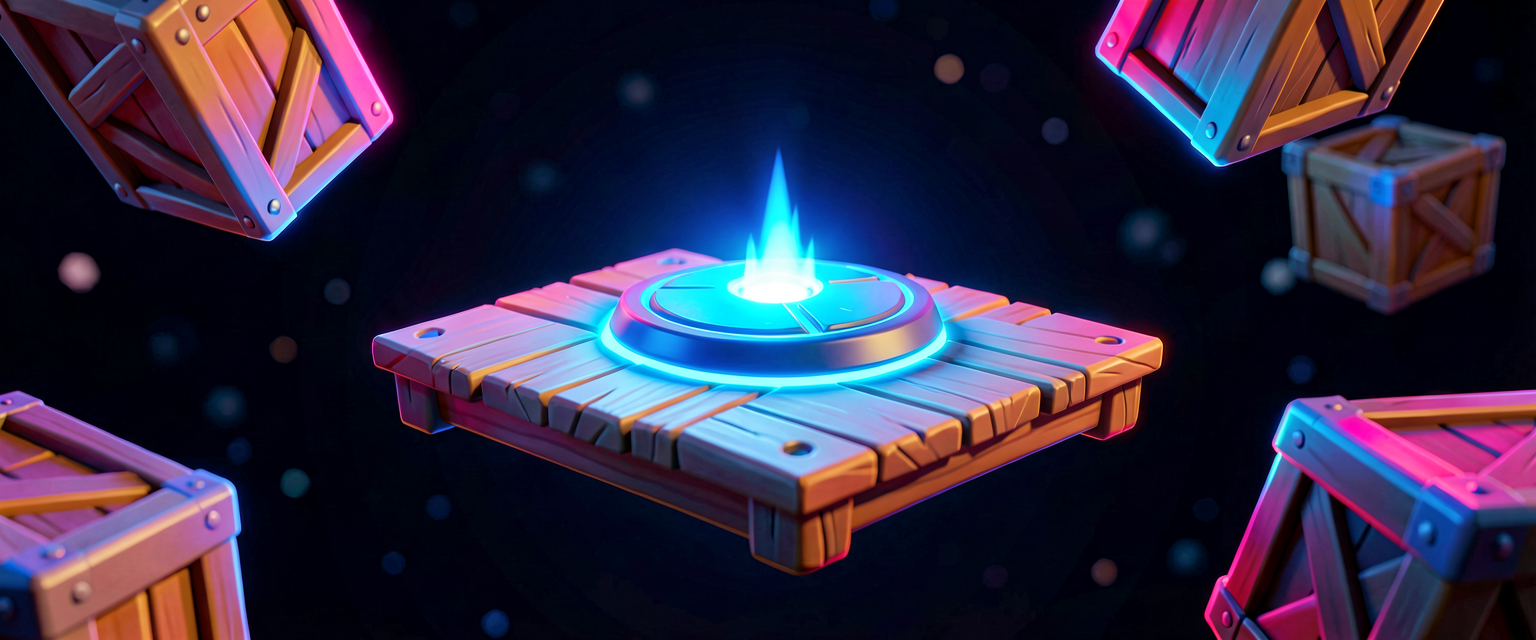
- A Creative Prop: Specifically, an Airborne Hoverplatform A. We’ll use this as our "test subject" for Verse’s visibility controls.
Let's Build It
First, make sure you have the Verse Starter Template initialized. If you haven’t done this yet, go to the UEFN content browser, find the Verse Device example, and create a new project from it. This gives you the basic framework (the Verse file and the VerseDevice device in your level).
Now, let’s populate the level.
Step 1: The Spawn Point
Drag a Player Spawn Pad into your level. Place it somewhere safe, maybe on a small island or a platform. This is your "Bus Drop" location. When the game starts, the player will appear here.
Step 2: The Test Subject (The Prop)
We need an object that Verse can manipulate. Drag a Creative Prop into the level. For this tutorial, we’ll use the Airborne Hoverplatform A. Why? Because it’s already floating, making it easy to see when it disappears or reappears.
Place it a few meters away from the spawn pad. You want it visible, so the player can see it before we start messing with it.
Step 3: Naming Matters
In programming, if you don’t give things names, you can’t talk to them. In Fortnite Creative, you can just click them. In Verse, we need to be precise.
- Click on your Player Spawn Pad.
- In the Details Panel (usually on the right side), look for the Name field.
- Rename it to
SpawnPad. (Keep it simple! No spaces, no weird symbols).
Do the same for your Airborne Hoverplatform:
- Click on the platform.
- Rename it to
TestPlatform.
Now, Verse knows exactly which object is which. SpawnPad is where players start. TestPlatform is what we’re going to control.
Step 4: The Verse Code
Now, let’s open the Verse file. You’ll see some default code. We’re going to replace it with a simple script that "wakes up" when the game starts and tells our platform to do something basic.
Here is the complete, annotated code for setting up this initial interaction:
# This line tells Verse that this script belongs to the VerseDevice in our level.
# Think of it like saying "This script controls the device named 'VerseDevice'."
struct MyLevelScript : VerseDeviceScript {
    # We need to tell Verse where to find our objects.
    # We do this by creating "references" to the props in our level.
    # 'SpawnPad' and 'TestPlatform' must match the Names we set in the editor!
    SpawnPad: PlayerSpawnPad = Self.GetReference(PlayerSpawnPad, "SpawnPad")
    TestPlatform: CreativeProp = Self.GetReference(CreativeProp, "TestPlatform")

    # This function runs ONCE when the game starts.
    # It’s like the "Countdown" before the match begins.
    OnBegin<override>()<test> = () => {
        # Let’s do something visible immediately.
        # We’ll hide the platform for 1 second, then show it.
        # This proves Verse is talking to our props.

        # 1. Hide the platform instantly.
        # Hide() makes the prop invisible AND removes its collision (you can walk through it).
        TestPlatform.Hide()

        # 2. Wait 1 second.
        # This is like a storm timer delay.
        @Wait(1.0)

        # 3. Show the platform again.
        # Show() makes it visible and puts the collision back.
        TestPlatform.Show()

        # Optional: Print a message to the debug log so we know it worked.
        # It’s like checking your kill feed to see if you got an elimination.
        Print("Level setup complete! Platform toggled.")
    }
}
Walkthrough: What Just Happened?
struct MyLevelScript : VerseDeviceScript: This is the "container" for your code. It’s like the island’s main rulebook. Every Verse script needs this structure.Self.GetReference(...): This is the most important line. It’s like pointing your finger at an object in the editor and saying, "YOU. I’m talking to you." We’re telling Verse: "Find the object namedSpawnPadand call itSpawnPadin my code. Do the same forTestPlatform."OnBegin: This is an Event. In Fortnite, events are things that happen (like a player entering a zone).OnBeginis the event that fires when the match starts.TestPlatform.Hide(): This is a Function. A function is a command.Hide()is a specific command that tells the prop to become invisible.@Wait(1.0): This pauses the code for 1 second. Without this, the platform would hide and show so fast you’d never see it. It’s like the delay between a trap activating and resetting.
Try It Yourself
Now that you’ve got the basic setup, it’s time to experiment. The goal is to make the platform do something more interesting than just a quick blink.
Challenge:
Modify the OnBegin function so that the platform hides for 2 seconds, shows for 2 seconds, and then hides again. Make it a "blink" effect.
Hint:
You’ll need to chain your commands together. Remember, @Wait pauses the code. So, the order of operations is:
Hide()Wait(2.0)Show()Wait(2.0)Hide()
Note: If you want to get fancy, try adding a second platform and controlling both at the same time! Just remember to rename your second prop in the editor and add a second reference in your Verse code.
Recap
Setting up your level in Verse is all about connection. You’ve learned that:
- Your level is a hierarchy of Entities (objects).
- You must name your props and devices in the editor so Verse can find them.
- You use References in your Verse code to link your script to the objects in the world.
- You control these objects using Functions like
Hide()andShow().
You’ve now built the stage. The actors are in place. The next step is to make them move, react, and create chaos. Stay tuned for more Verse tutorials!
References
- https://github.com/vz-creates/uefn
- https://dev.epicgames.com/documentation/en-us/fortnite/disappearing-platform-on-loop-using-verse-in-unreal-editor-for-fortnite
- https://dev.epicgames.com/documentation/en-us/fortnite/verse-api/fortnitedotcom/devices/stat_creator_device
- https://dev.epicgames.com/documentation/en-us/fortnite/synchronized-disappearing-platforms-using-verse-in-unreal-editor-for-fortnite
- https://dev.epicgames.com/documentation/en-us/fortnite/tagged-lights-2-setting-up-the-level-in-verse
Verse source files
- 01-fragment.verse · fragment
Turn this into a guided course
Add 3. Setting Up the Level to your free study plan — we'll suggest related pages and stitch the lot into one compile-checked, self-guided lesson with worked examples and quizzes.
References
Original tutorial generated by Verse Island from the Verse/UEFN knowledge base, with references to the Epic Games sources above. Code is validated against the knowledge base.