
How to Build Your First Custom Fortnite Device (Without Breaking the Game)
Unverified — this example may not compile as-is.
The Verse code below did not pass our automated compile check, so it isn't marked verified and is hidden from the guide listing. The explanation may still be useful, but treat the code as a draft and adapt it before use.
How to Build Your First Custom Fortnite Device (Without Breaking the Game)
So, you’ve watched a few tutorials, you know where the "Verse" tab is, and you’re ready to stop just using devices and start making them. Welcome to the club. There is nothing quite as satisfying as placing a custom object in your island that behaves exactly how you want it to, rather than relying on the default settings that everyone else uses.
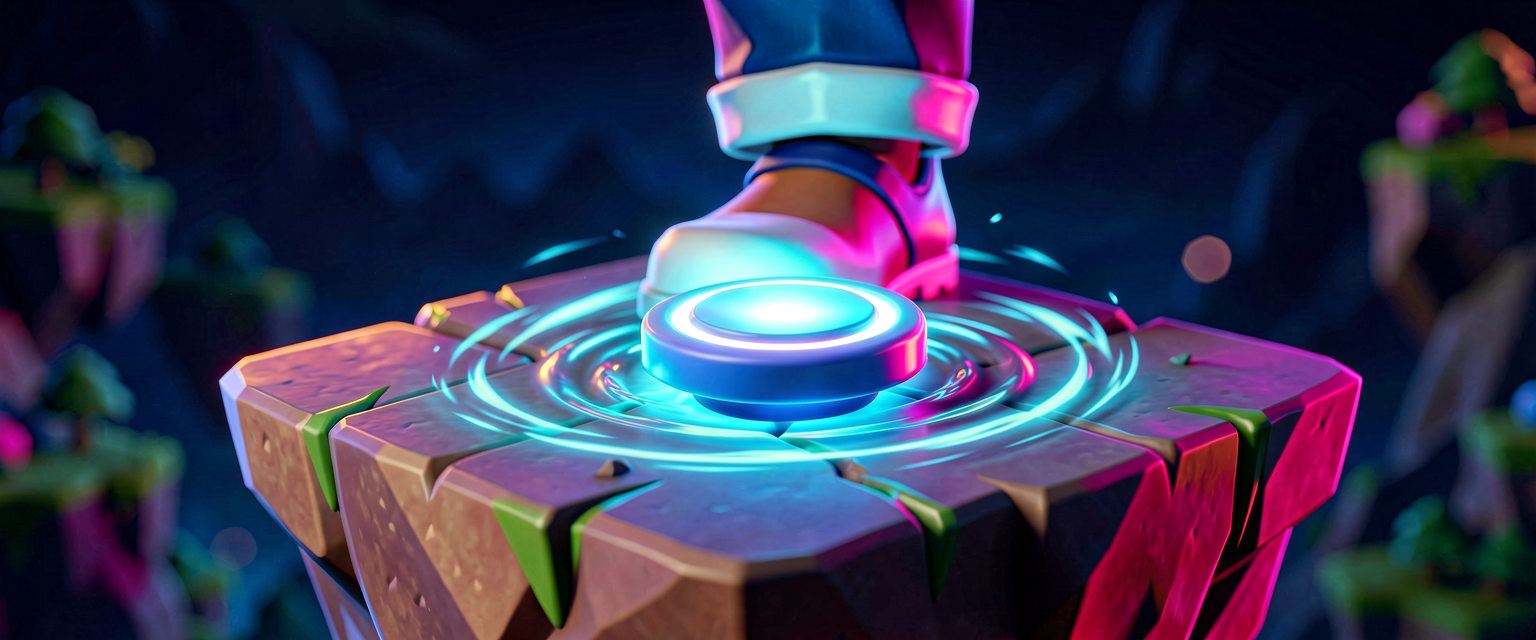
In this tutorial, we’re going to build a "Chaos Button." It’s a simple, custom device you can place in your level. When a player steps on it, it doesn’t just do nothing—it triggers a specific event, logs a message (for debugging, because we’re professionals), and prepares the stage for whatever chaos you want to unleash next. We’ll cover the absolute basics of what a Verse device actually is and how to get it running in UEFN.
What You'll Learn
- What a Verse Device is: Think of it as a custom prop with a brain.
- The
@Symbol: The magic spell that tells the game "This thing is placeable in the editor." - The
OnBeginEvent: The equivalent of the battle bus dropping—when the game starts, what happens first? - Basic Debugging: How to see what your code is doing in the console without needing a PhD in computer science.
How It Works
Before we write a single line of code, let’s demystify what we’re building. In UEFN, you’re used to dragging and dropping devices like "Trigger" or "Prop Mover." These are pre-made tools. A Verse Device is the same thing, but you write the logic yourself.
Think of a Verse Device like a custom skin. The shape (the mesh) is still a box or a sphere, but the behavior (what happens when you touch it) is entirely up to you. To make something placeable in the level, you have to give it a specific tag in your code. This tag is called a Decorator. In Verse, decorators look like @Something. It’s like putting a "For Sale" sign on your code so the editor knows, "Hey, I can put this in the world!"
The most important part of any device is its Lifecycle. Just like a match has a start, a middle, and an end, your device has events. The most common one to start with is OnBegin. This is the moment the game loads your island. It’s like the moment the storm closes in and the real gameplay starts. If you want your device to do something immediately when the match begins (or when you place it in the editor for preview), you hook into OnBegin.
Let's Build It
Here is the code for our Chaos Button. Don’t worry if it looks alien; we’ll break it down line by line.
using { /Fortnite.com/Devices }
using { /Verse.org/Simulation }
using { /UnrealEngine.com/Temporary/Diagnostics }

# This is a comment. The game ignores these.
# Think of them as notes you leave for your future self.

# 1. The Decorator: This makes the device appear in the UEFN Creative Devices list.
# Without this, your code is just a script running in the void.
@editable

# 2. The Class Definition: This is the blueprint for our device.
# "ChaosButton" is the name we give to our custom device.
ChaosButton := class(creative_device):

    # 3. The OnBegin Function: This runs when the device is initialized.
    # It's the "Start Game" button for this specific device.
    OnBegin<override>()<suspends>:void=
        # 4. Logging: This prints a message to the debug console.
        # It's like checking your kill feed to see if a trick worked.
        # "Print" sends the message to the debug log.
        Print("Chaos Button activated! Prepare for mayhem.")

        # 5. (Optional) Example Action:
        # Let's say we want to print the player's name who triggered it?
        # Actually, OnBegin happens for the *device*, not a specific player.
        # So, for now, we just stick to the activation message.```

### Walkthrough: What Just Happened?

1.  **`@placeable`**: This is the most critical line for a beginner. If you forget this, your device will not show up in the Creative Devices menu in UEFN. It’s the difference between having a weapon in your inventory and having a blank gun that does nothing.
2.  **`class(creative_device)`**: In programming, a **Class** is a template. Imagine a cookie cutter. `creative_device` is the base template provided by Epic. By saying `ChaosButton := class(creative_device)`, we are saying, "Take the standard device template and customize it to be my Chaos Button."
3.  **`OnBegin<override>()<suspends>`**:
    *   **`OnBegin`**: The event that fires when the game starts or the device is placed.
    *   **`<override>`**: This tells the compiler, "I know this function exists in the parent class, but I want to replace its default behavior with my own code."
    *   **`<suspends>`**: This is a technical detail for now, but think of it as "This action might take a moment, so pause other things while it happens." It’s required for most device logic.
4.  **`PrintToAll(...)`**: This is your best friend. When you test your island, open the debug console (usually `~` key). If you see your message there, your code is working. If you see an error, you know exactly where to look.

### How to Use This in UEFN

1.  Open **Unreal Editor for Fortnite (UEFN)**.
2.  Go to the **Verse** tab and create a new script.
3.  Paste the code above. Make sure the file name matches the class name (`ChaosButton.verse`).
4.  **Save** the script.
5.  Go to the **Creative** tab. You should now see a new device category or a new device named "ChaosButton."
6.  Drag it into your level.
7.  **Playtest** your island. As soon as the game starts, check your debug console. You should see: `Chaos Button activated! Prepare for mayhem.`

## Try It Yourself

You’ve got the basics down. Now, let’s add some flavor.

**Challenge:** Modify the `OnBegin` function so that instead of just printing a message, it also changes the color of the device itself when the game starts.

*Hint:* You’ll need to access the device’s **Visual** component. In Verse, devices have properties you can tweak. Look up how to access the `Visual` property of a `creative_device` and how to set its `Color` or `Material`. (Don’t worry if you get stuck—try searching "Verse creative_device visual color" in the docs. The answer is out there!)

## Recap

*   **Verse Devices** are custom props you can place in your level, controlled by your own code.
*   The **`@placeable`** decorator is mandatory if you want your device to show up in the UEFN editor.
*   **`OnBegin`** is the event that triggers when the device is initialized, perfect for setting up initial actions.
*   **`PrintToAll`** is your go-to tool for debugging. If it’s not working, print something and see if it shows up in the console.

You’ve just written your first Verse device. It’s simple, it’s small, but it’s *yours*. From here, you can add triggers, grant items, or even summon a storm. The sky’s the limit (literally, since you can probably make the storm do whatever you want).

## References

*   https://dev.epicgames.com/documentation/fortnite/verse-parkour-template-in-unreal-editor-for-fortnite
*   https://dev.epicgames.com/documentation/en-us/fortnite/verse-parkour-template-in-unreal-editor-for-fortnite
*   https://dev.epicgames.com/documentation/en-us/uefn/verse-parkour-template-in-unreal-editor-for-fortnite
*   https://dev.epicgames.com/documentation/en-us/fortnite/sorting-algorithms-in-verse
*   https://dev.epicgames.com/documentation/en-us/uefn/sorting-algorithms-in-verse
Verse source files
- 01-device.verse · device
Turn this into a guided course
Add A Verse-authored creative device that can be placed in a level to your free study plan — we'll suggest related pages and stitch the lot into one compile-checked, self-guided lesson with worked examples and quizzes.
References
- This is a Verse-authored creative device that can be placed in a level ↗
- This is a Verse-authored creative device that can be placed in a level ↗
- This is a Verse-authored creative device that can be placed in a level ↗
- A Verse-authored creative device that can be placed in a level. ↗
- A Verse-authored creative device that can be placed in a level. ↗
Original tutorial generated by Verse Island from the Verse/UEFN knowledge base, with references to the Epic Games sources above. Code is validated against the knowledge base.