
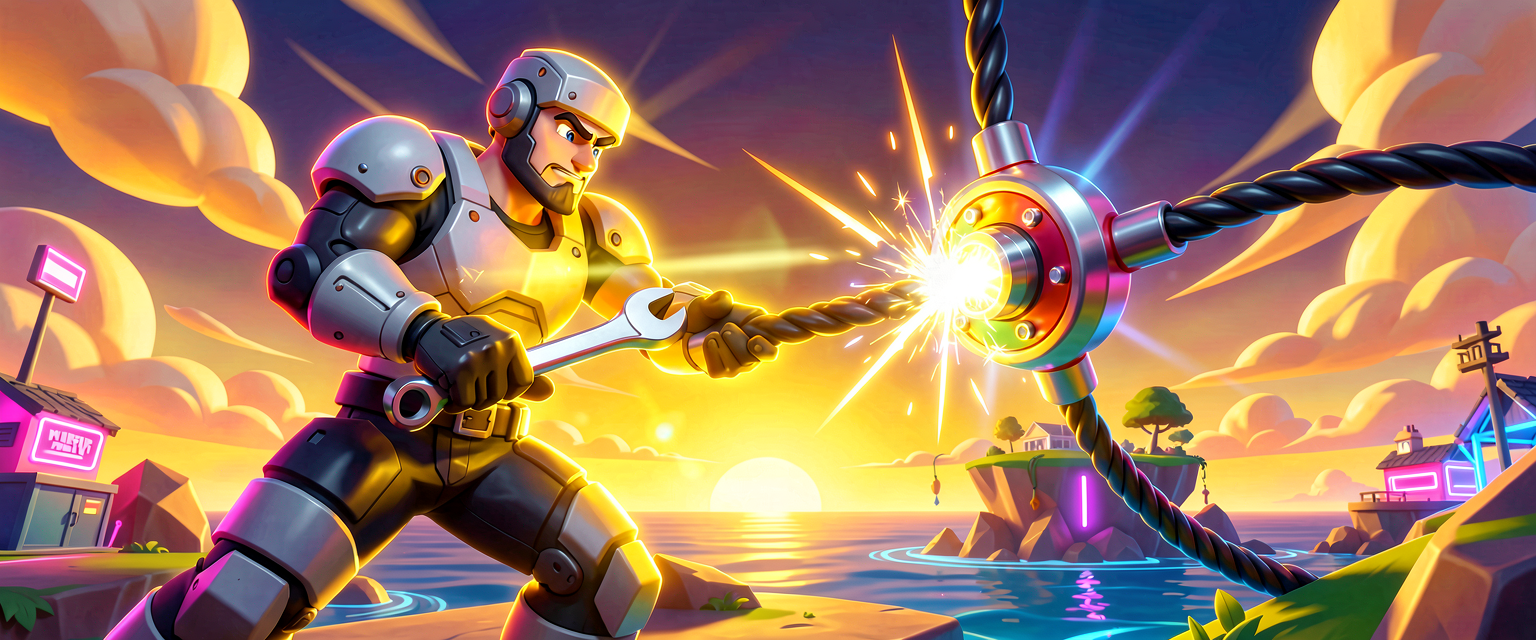
Stop Breaking Your Island: How to Master the Patchwork Tool
Stop Breaking Your Island: How to Master the Patchwork Tool
You’ve built the ultimate trap house. You’ve rigged the loot drops to explode if you breathe too hard. But then you hit Play… and nothing happens. Why? Because your cables are loose, your switches are flipped to "Off," or your knobs are stuck at zero.
Enter the Patchwork Tool. Think of it as the "Admin Remote" for your island. It’s the only way to interact with your devices inside the game without restarting the session. No more quitting to the lobby, tweaking settings, and waiting for the bus to respawn. You fix it in real-time, like a mechanic in the pit during a pit stop.
Let’s get your devices talking to each other so your island actually works.
What You'll Learn
- How to Equip It: Why you can’t find it in the Creative inventory and where it actually lives.
- The Four Moves: How to connect cables, flip switches, turn knobs, and open panels using just your mouse/trigger.
- The "Allow Cable Access" Setting: The hidden switch that stops your devices from being hacked (or fixed) by players.
- Real-World Build: A simple "Boss Room" where you manually trigger the boss spawn and adjust the music tempo.
How It Works
1. The "Quick Bar" Quirk
In UEFN (the editor), you won’t find the Patchwork Tool in the standard Creative inventory. It’s not a weapon you pick up off the ground. It’s a system tool that only appears when you are in Create Mode (the mode where you build, not play).
When you hit Play, the game automatically equips this tool for you. It sits in your last weapon slot. If you start in Edit Mode (building), you just need to place any Patchwork-compatible device on the map, and the tool will appear in your hotbar the moment you enter the game.
2. It’s Like a Multi-Tool
The Patchwork Tool doesn’t shoot bullets. It shoots connections. Here’s the mapping:
- Fire Button (Click): This is your "Select/Interact" button.
- Click a Cable Connector: Picks up the cable. Click another connector to plug it in. (This is called Patching).
- Click a Switch: Flips it On or Off.
- Click a Panel: Opens the device’s internal menu (like the Customize panel).
- Hold Fire + Aim Up/Down: This turns Knobs.
- Imagine a volume slider or a timer dial. Aim up to increase, aim down to decrease.
- Click Arrows on Carousels: Cycles through presets (like changing a playlist or a trap variant).
3. The "Allow Cable Access" Gatekeeper
Not every device wants to be touched. In the device settings, there’s a toggle called Allow Cable Access.
- On: Players can use the Patchwork Tool to connect cables, flip switches, or turn knobs.
- Off: The device is locked. Players can’t touch it. This is crucial for keeping your puzzle mechanics secret or preventing players from accidentally breaking your trap.
Let's Build It
We’re going to build a "Boss Room" where the boss doesn’t spawn until you manually turn on the power and crank up the "Intensity."
Step 1: The Setup
- Go to Edit Mode.
- Place a Switch device. Name it "Power Switch."
- Place a Prop Spawner (or a Trap Spawner). Name it "Boss Spawner."
- Place a Music Manager device. Name it "Boss Music."
Step 2: The Connections (Patching)
- Equip the Patchwork Tool: Hit Play. You should see the tool in your hand.
- Connect Power:
- Click the Output port (usually the right side) of the Switch.
- Click the Input port (usually the left side) of the Boss Spawner.
- Result: The cable glows. When you flip the switch, the spawner gets power.
- Connect Music:
- Click the Output port of the Switch.
- Click the Input port of the Music Manager.
- Result: When the switch is On, the music starts.
Step 3: The Knob (Intensity)
- Click the Boss Spawner to open its panel.
- Look for a knob labeled "Spawn Count" or "Intensity" (if available on the specific spawner type).
- Hold the Fire Button and aim Up. You’ll see the number go up.
- Aim Down to lower it.
Step 4: The Lockdown
- Go back to Edit Mode.
- Select the Boss Spawner.
- In the properties panel, find Allow Cable Access.
- Set it to Off.
- Test: Hit Play. Try to use the Patchwork Tool on the Spawner. You can’t! But you can still use it on the Switch and Music Manager. This prevents players from accidentally changing the spawn count mid-fight.
Try It Yourself
Challenge: Build a "Loot Goblin" room.
- Place a Loot Pool device.
- Place a Trigger Volume (set to "Once" or "Loop").
- Use the Patchwork Tool to connect the Trigger to the Loot Pool.
- Twist: Add a Timer device. Connect the Timer to the Loot Pool so it only opens for 10 seconds.
- Goal: Use the Patchwork Tool’s knob feature to adjust the Timer’s duration while the game is running to make it harder or easier without restarting.
Hint: If your timer doesn’t respond to the knob, check if the device has a "Time" knob exposed in its panel, and ensure "Allow Cable Access" is On for the Timer, but maybe Off for the Loot Pool to keep the loot safe from tampering.
Recap
- The Patchwork Tool is your in-game remote control, found in your Quick Bar during Create Mode.
- Use Click to patch cables, toggle switches, and open panels.
- Use Hold Fire + Aim to turn knobs and adjust values.
- Use Allow Cable Access to decide if players can mess with your devices or if they’re locked down.
Now go fix your broken islands before the storm closes in!
References
- https://dev.epicgames.com/documentation/en-us/uefn/using-patchwork-in-unreal-editor-for-fortnite
- https://dev.epicgames.com/documentation/en-us/fortnite/using-fortnite-patchwork-in-unreal-editor-for-fortnite
- https://dev.epicgames.com/documentation/en-us/fortnite/getting-started-with-patchwork-in-fortnite-creative
- https://dev.epicgames.com/documentation/en-us/fortnite/using-patchwork-music-manager-devices-in-fortnite-creative
- https://dev.epicgames.com/documentation/en-us/fortnite-creative/getting-started-with-patchwork-in-fortnite-creative
Turn this into a guided course
Add Accessing the Patchwork Tool to your free study plan — we'll suggest related pages and stitch the lot into one compile-checked, self-guided lesson with worked examples and quizzes.
References
Original tutorial generated by Verse Island from the Verse/UEFN knowledge base, with references to the Epic Games sources above. Code is validated against the knowledge base.