
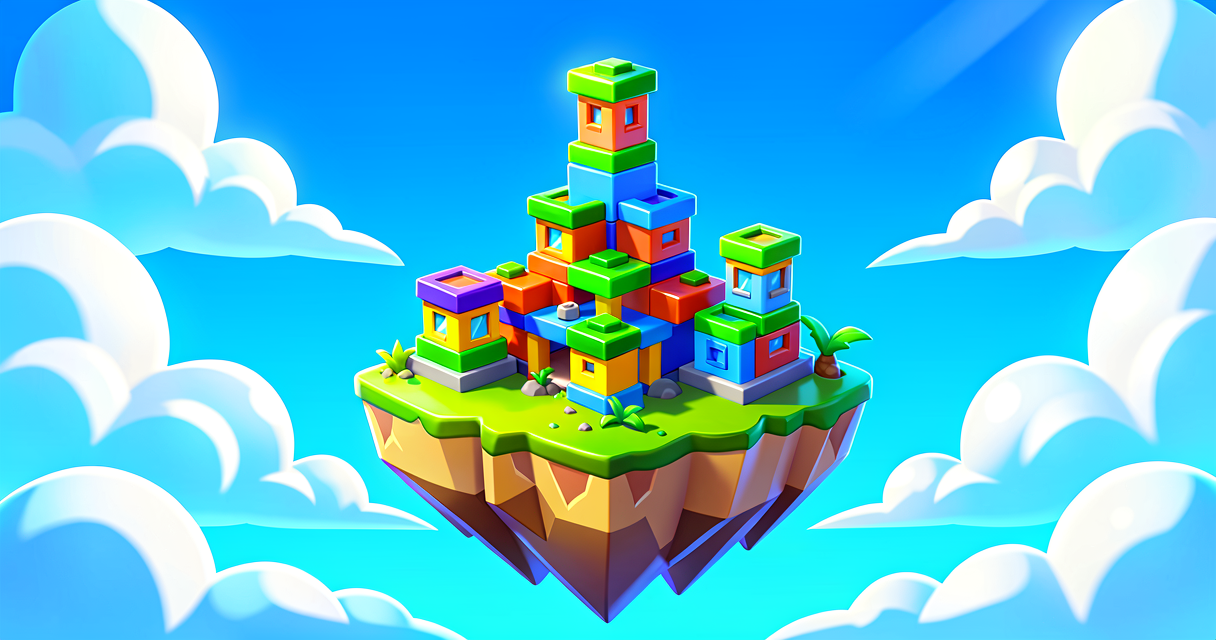
Build Your First LEGO House in Fortnite
Build Your First LEGO House in Fortnite
Do you like building with blocks? Do you like playing Fortnite? You can do both! We will build a tiny LEGO house together. You will place walls and doors. Then, you will make a light turn on when a player walks inside. It is like magic, but it is just code. Let's start building!
What You'll Learn
- How to use the LEGO Home Builder template.
- What a "Scene Graph" is (think of it as a family tree for your island).
- How to use a "Trigger" to detect players.
- How to make a light turn on automatically.
How It Works
Step 1: Start with the LEGO Template
First, you need a place to build. Fortnite has a special template called LEGO Home Builder. It is like a pre-built playground. It has LEGO bricks and fun props ready for you. You do not start with an empty field. You start with a blank canvas that already knows how to handle LEGO pieces.
Step 2: The Scene Graph (The Family Tree)
Every object in your island has a home. This is called the Scene Graph. Imagine a big tree. The trunk is your island. The branches are your rooms. The leaves are your chairs and tables.
- Entity: This is any object. A wall is an entity. A light is an entity.
- Hierarchy: This is how objects are grouped. If you put a lamp on a table, the lamp is "child" of the table. If the table moves, the lamp moves with it!
- Component: This is what the object does. A door has a component that lets it open. A light has a component that lets it glow.
Step 3: The Trigger (The Invisible Mat)
We need a way to know when a player enters the house. We use a Trigger. Think of a trigger like a pressure mat in a hallway. When someone steps on it, click! Something happens. In our case, we want the light to turn on.
Step 4: The Code (The Brain)
Verse is the language we use to tell the Trigger what to do. It is like a recipe.
- Listen: Wait for a player to step on the mat.
- Act: Find the light bulb.
- Change: Turn the light bulb on.
We will write this recipe in Verse. Don't worry! It is very simple.
Let's Build It
Here is the code for our smart light. Copy this into your Verse editor.
using { /Fortnite.com/Devices }
using { /Verse.org/Simulation }

# This is our main device. It is the brain of our house.
SmartLightDevice := class(creative_device):

    # This is the light we want to control.
    # We will connect it later in the editor.
    @editable
    my_light: customizable_light_device = customizable_light_device{}

    # This is the trigger mat.
    # We will connect it later in the editor.
    @editable
    entry_trigger: trigger_device = trigger_device{}

    # This function runs when the game starts.
    OnBegin<override>()<suspends>: void =
        # We tell the trigger: "Listen for players!"
        entry_trigger.TriggeredEvent.Subscribe(
            # When a player steps on the mat...
            OnEntryTriggered
        )

    # This helper function receives the agent who stepped on the mat.
    OnEntryTriggered(Agent: ?agent): void =
        # ...turn the light on!
        my_light.TurnOn()```

### Walkthrough of the Code

1.  `SmartLightDevice := class(VerseDevice):`
    This line creates a new tool for us. It is like naming a new LEGO set. We call it `SmartLightDevice`.

2.  `my_light: LightDevice = LightDevice{}`
    This is a **variable**. A variable is a box that holds a value. Here, the box holds a "Light Device." It is empty for now. We will fill it in the editor.

3.  `entry_trigger: TriggerDevice = TriggerDevice{}`
    This is another variable. It holds our "Trigger Device." This is our pressure mat.

4.  `OnBegin<override>()<suspends>: void =`
    This is a **function**. A function is a list of instructions. `OnBegin` means "do this when the island starts."

5.  `entry_trigger.TriggeredEvent.Subscribe(...)`
    This is the magic part. We are telling the trigger to watch for an event. An **event** is something that happens. Here, the event is "someone steps on me." `TriggeredEvent` passes the `agent` (the player) who activated it to our helper function.

6.  `my_light.TurnOn()`
    This is the action. We find our light variable. We tell it to turn on by calling its real `TurnOn()` function. To turn the light off you would call `my_light.TurnOff()` instead.

## Try It Yourself

Now, let's put this into your island!

1.  Open **Fortnite Creative** and select the **LEGO Home Builder** template.
2.  Place a **Light Device** inside your LEGO house.
3.  Place a **Trigger Device** at the front door. Make it big enough to walk through.
4.  Open the **Verse Editor** for the Trigger Device.
5.  Paste the code above.
6.  **Important:** In the editor panel, drag your Light Device into the `my_light` slot. Drag the Trigger Device into the `entry_trigger` slot.
7.  Play your island! Walk through the door. Did the light turn on?

**Challenge:** Can you make the light turn **off** when the player leaves? Hint: Look for a function called `OnEndTriggered`.

## Recap

You built a smart LEGO house! You learned about the Scene Graph (the family tree of objects). You used a Trigger (the pressure mat) to detect a player. And you wrote Verse code to turn on a light. Great job! You are now a code builder.

## References

*   https://dev.epicgames.com/documentation/en-us/fortnite/build-lego-home-builder-in-fortnite
*   https://dev.epicgames.com/documentation/en-us/fortnite-creative/lego-asset-inventory-in-fortnite-creative
*   https://dev.epicgames.com/documentation/en-us/fortnite-creative/build-lego-home-builder-in-fortnite-creative
*   https://dev.epicgames.com/documentation/en-us/fortnite/lego-brand-rules-in-fortnite
*   https://dev.epicgames.com/documentation/en-us/fortnite-creative/building-lego-islands-in-fortnite-creative
Verse source files
- 01-device.verse · device
Turn this into a guided course
Add build-lego-home-builder-in-fortnite to your free study plan — we'll suggest related pages and stitch the lot into one compile-checked, self-guided lesson with worked examples and quizzes.
References
Original tutorial generated by Verse Island from the Verse/UEFN knowledge base, with references to the Epic Games sources above. Code is validated against the knowledge base.