
Build Your First Scene Graph Family Tree
Build Your First Scene Graph Family Tree
Welcome to the world of Scene Graph! You are about to learn how to organize your Fortnite island like a giant LEGO set. We will build a "Tree House" prefab. This is a reusable group of objects that move and act together. You will see how entities and components work as a family. Let’s start building!
What You'll Learn
- What an Entity is (it’s like a box).
- What a Component is (it’s like a tool inside the box).
- How to make a Hierarchy (parent and child links).
- How to create a Prefab (a reusable template).
How It Works
Think of your island as a giant toy chest. Inside, you have many different toys. In Scene Graph, every object is an Entity. An entity is just a container. It is empty until you put things in it.
You put Components inside entities. A component gives the entity a job. For example:
- A Mesh Component makes it look like something (like a tree).
- A Transform Component decides where it sits in the world.
Now, imagine you have a tree. You want to put a birdhouse on it. You do not just place the birdhouse on the ground. You attach the birdhouse to the tree. This is a Hierarchy. The tree is the Parent. The birdhouse is the Child.
When you move the parent (the tree), the child (the birdhouse) moves with it. This is super useful! You can group many objects together. You can save that group as a Prefab. A prefab is like a cookie cutter. You can stamp out as many of these tree houses as you want. They all look the same. They all move together.
This system is better than the old way. It keeps your island organized. It stops you from moving things by accident. It makes big islands easy to manage.

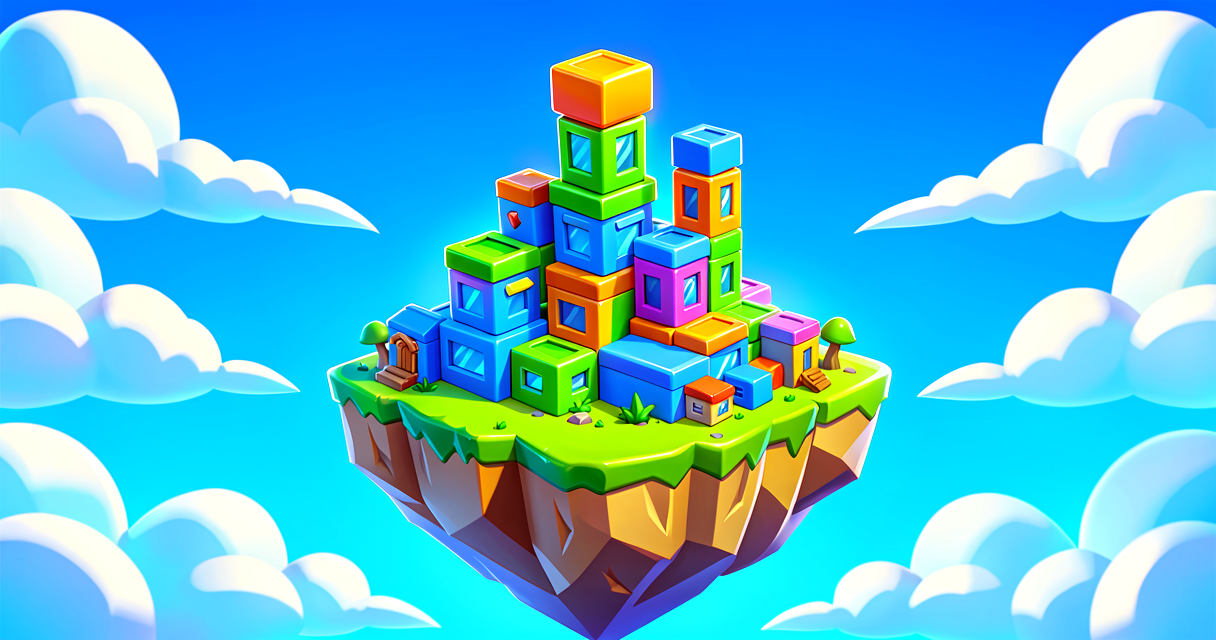
A hierarchy is a family tree: move the parent and every child follows — then save the whole group as a reusable prefab.
Let's Build It
We are going to build a simple "Lamp Post" prefab. It has a pole and a light. We will link them so the light stays on the pole.
Step 1: Create the Entity
First, create a new Entity in your Scene Graph. Name it LampPost.
Step 2: Add the Pole (Parent)
Add a Mesh Component to LampPost. Choose a long cylinder mesh. This is the pole. It will be the parent.
Step 3: Add the Light (Child)
Create a new Entity inside LampPost. Name it LightBulb.
Add a Mesh Component to LightBulb. Choose a small sphere or bulb mesh.
Because LightBulb is inside LampPost, it is now a child.
Step 4: Position the Child
Move the LightBulb so it sits on top of the LampPost mesh.
Now, if you move the LampPost, the LightBulb moves with it!
Step 5: Save as Prefab
Right-click the LampPost entity. Select "Create Prefab".
Name it LampPostPrefab.
You can now drag this prefab from your assets into your island. You can add fifty of them. They will all be perfect.
Here is a simple Verse concept to help you understand the code structure behind this. We are not writing complex code yet. We are just seeing how the logic flows.
In this code, LampPost is the container. Pole and Light are the tools inside. The Initialize function sets everything up. It ensures the light is always on the pole. You do not have to fix it every time. The hierarchy handles it.
Try It Yourself
Now it is your turn! Build a "Treasure Chest" prefab.
- Create an Entity called
TreasureChest. - Add a Box Mesh component to it. This is the chest body.
- Create a child Entity called
Lid. - Add a Flat Box Mesh to the
Lid. - Position the
Lidso it sits on top of the chest body. - Save it as a Prefab.
Hint: Try moving the TreasureChest entity in the editor. Watch what happens to the Lid. Does it stay attached? If not, check if the Lid is really a child of the chest in the Scene Graph tree.
Recap
You learned that entities are containers. Components give them power. Hierarchies link them together. Parents move, and children follow. Prefabs let you reuse your work. You are now ready to build complex islands!
References
- https://dev.epicgames.com/documentation/en-us/fortnite/custom-inventory-and-items-overview-in-fortnite
- https://dev.epicgames.com/documentation/en-us/fortnite/prefabs-and-prefab-instances-in-unreal-editor-for-fortnite
- https://dev.epicgames.com/documentation/en-us/fortnite/getting-started-in-scene-graph-in-fortnite
- https://dev.epicgames.com/documentation/en-us/fortnite/sample-tutorial-01-iteration-in-scene-graph-in-fortnite
- https://dev.epicgames.com/documentation/en-us/fortnite/30-10-fortnite-ecosystem-updates-and-release-notes-in-creative-and-unreal-editor-for-fortnite
Get the complete code — free
You've read the full walkthrough. The complete, copy-paste-ready Verse solution is free for members — sign in to unlock it.
Free with your BrainDead.TV / BrainDeadGuild Discord account. The walkthrough above is always free.
Verse source files
- 01-fragment.verse · fragment
Turn this into a guided course
Add Building an entity hierarchy with the scene graph to your free study plan — we'll suggest related pages and stitch the lot into one compile-checked, self-guided lesson with worked examples and quizzes.
References
Original tutorial generated by Verse Island from the Verse/UEFN knowledge base, with references to the Epic Games sources above. Code is validated against the knowledge base.