
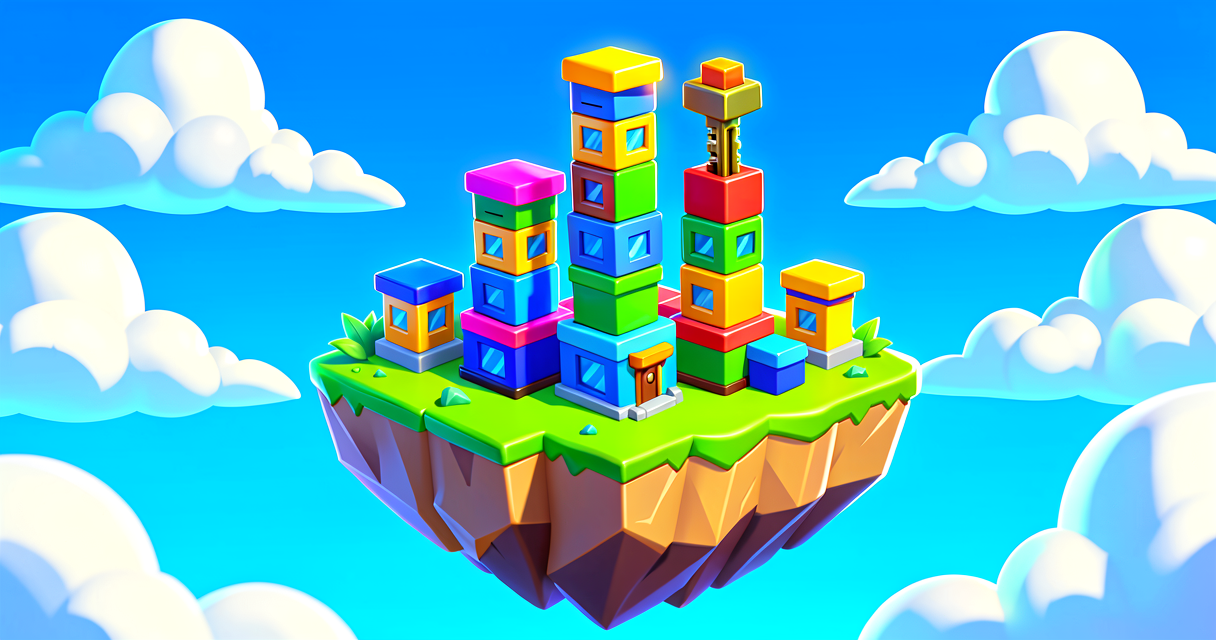
Build Your Own LEGO Island in Fortnite
Build Your Own LEGO Island in Fortnite
Have you ever played a LEGO game and thought, "I wish I could build this myself"? Now you can! You can make your own LEGO Island in Fortnite. It is like building with digital bricks. You get to create a whole world. You can build houses, trees, and fun games. Let's start building!
What You'll Learn
- How to start a LEGO Island project.
- What "templates" are and why they help.
- How to place LEGO bricks in your world.
- The special rules for LEGO building.
How It Works
Building a LEGO Island is different from building a normal Fortnite island. Think of it like this. A normal island is like a sandbox with sand. A LEGO island is like a box of LEGO bricks. You have special pieces. You have special rules.
First, you need a "Template." A template is like a starter kit. It has some bricks already placed. It saves you time. You do not start with nothing. You start with a base.
Next, you use LEGO assets. These are the bricks. They look like real LEGO. They are smaller than normal Fortnite objects. Players walk on them just like on any other island. But they look blocky and fun.
You must follow the LEGO Brand Rules. This means you must use the official LEGO pieces. You cannot mix them with random Fortnite items. It keeps the look clean. It makes it feel like a real LEGO game.
Let's Build It
Here is how you start your first LEGO Island. We will use a template. This is the easiest way.
Step 1: Open Unreal Editor for Fortnite (UEFN). Go to the Fortnite Launcher. Click "Create." Select "LEGO Island."
Step 2: Choose a Template. You will see a few options. Pick one. It might be a beach or a city. This is your "Scene Graph" start. The scene graph is just the list of everything in your game. The template gives you the first items.
Step 3: Add Your Bricks. Open the Creative Inventory. Look for the LEGO tab. Drag a brick into the world. Place it. Drag another. Stack it!
Here is a simple Verse script. It shows how to make a brick glow when you touch it. This is fun for players.
# This is a simple script for a LEGO brick
# It makes the brick glow when a player touches it

using { /Fortnite.com/Devices }
using { /Fortnite.com/Characters }
using { /Verse.org/Simulation }
using { /UnrealEngine.com/Temporary/Diagnostics }

# We create a "Device" called GlowingBrick
# This is like a special LEGO piece with magic
GlowingBrick := class(creative_device):

    # TriggerDevice is placed in the editor and linked here.
    # It detects when a player enters the brick's area.
    @editable
    Trigger : trigger_device = trigger_device{}

    # This runs when the game starts
    OnBegin<override>()<suspends> : void =
        # We wait for a player to activate the trigger
        # This is called an "Event"
        Trigger.TriggeredEvent.Subscribe(OnBrickTouched)

    # This function runs when the trigger fires
    # Agent is the player who stepped on the trigger
    OnBrickTouched(Agent : ?agent) : void =
        # Turn the agent into a fort_character so we can use character actions
        if (A := Agent?, Character := A.GetFortCharacter[]):
            # Print a message to the output log to confirm the glow fired
            # note: Verse has no runtime SetMaterialColor API for creative_devices;
            # use a customizable_light_device linked via @editable to change color at runtime.
            Print("Brick touched by a player — trigger the glow light here!")```

Let's break this down.
*   `GlowingBrick := class(creative_device)`: This is your new LEGO piece. It is a "class." A class is a blueprint. It tells the game what the brick can do.
*   `OnBegin`: This is the start of the game. The brick wakes up.
*   `Trigger.TriggeredEvent.Subscribe`: This signs up to listen for the event. It is like saying, "Tell me when someone steps here."
*   `OnBrickTouched`: This function runs every time the trigger fires. It checks every player who steps on it. It is like looking at every kid in the room.
*   `GetFortCharacter[]`: This asks, "Is this agent a real player character I can work with?"
*   `Print`: This sends a message to the log. It confirms the glow code ran. Swap it for a `customizable_light_device` call to make the brick truly shine.

You do not need to write this code to build. You can just place bricks. But this code makes it interactive. It makes the game feel alive.

## Try It Yourself

Now it is your turn! Try these steps.

1.  Start a new LEGO Island project.
2.  Pick a template. Do not start from scratch.
3.  Build a small house. Use only LEGO bricks.
4.  Try to make the roof a different color.

**Hint:** Look in the Creative Inventory under the "LEGO" tab. You will find walls, roofs, and doors. Stack them up!

## Recap

Building a LEGO Island is fun. You use special templates to start. You use LEGO bricks to build. You follow the LEGO rules. You can even add code to make things glow. Keep building!

## References

*   https://dev.epicgames.com/documentation/en-us/fortnite-creative/working-with-lego-islands-in-fortnite-creative
*   https://dev.epicgames.com/documentation/en-us/fortnite-creative/building-lego-islands-in-fortnite-creative
*   https://dev.epicgames.com/documentation/en-us/fortnite/building-lego-islands-in-fortnite
*   https://dev.epicgames.com/documentation/en-us/fortnite/lego-templates-in-fortnite
*   https://dev.epicgames.com/documentation/en-us/fortnite/game-collections-in-fortnite
Verse source files
- 01-device.verse · device
Turn this into a guided course
Add building-lego-islands-in-fortnite to your free study plan — we'll suggest related pages and stitch the lot into one compile-checked, self-guided lesson with worked examples and quizzes.
References
Original tutorial generated by Verse Island from the Verse/UEFN knowledge base, with references to the Epic Games sources above. Code is validated against the knowledge base.