
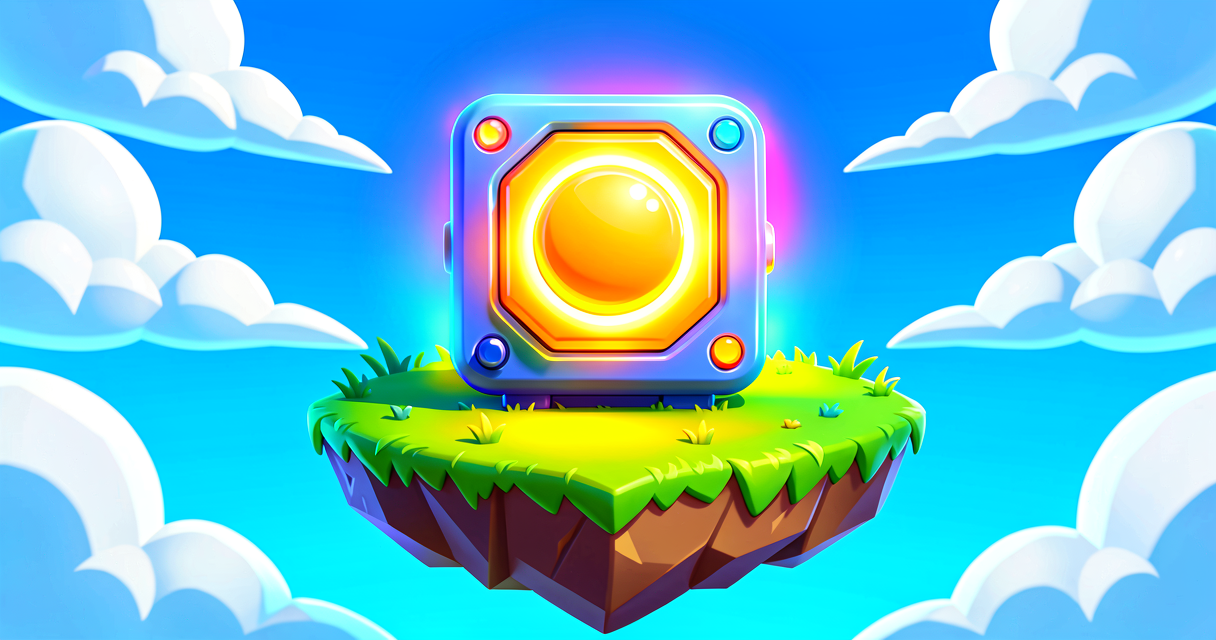
How to Build a Monster Spawner in Fortnite
Unverified — this example may not compile as-is.
The Verse code below did not pass our automated compile check, so it isn't marked verified and is hidden from the guide listing. The explanation may still be useful, but treat the code as a draft and adapt it before use.
How to Build a Monster Spawner in Fortnite
Do you want your island to have scary monsters? Or maybe friendly pets? You can make them appear out of thin air! We will use a special tool called the Creature Spawner. It is like a magic box that creates creatures for players to meet.
By the end of this guide, you will have a working spawner. Players will see creatures appear when they play your game. This is the first step to making a real adventure. Let's start building!
What You'll Learn
- What a Creature Spawner device is.
- How to choose which creature appears.
- How to control when and how many creatures show up.
- How to hide the spawner so it looks like magic.
How It Works
Imagine you are baking cookies. You have a cookie cutter. Every time you press it, a cookie shape appears. The Creature Spawner is like that cookie cutter. It is a device in Fortnite Creative. It sits in your world. When the game runs, it creates creatures at its spot.
You can change how the spawner works. You can pick the type of creature. You can pick how fast they appear. You can even make them appear one by one or all at once.
Think of the spawner as a factory. The factory has settings. One setting is the product (the creature). Another setting is the speed (how often to make them). You set these settings once. Then the factory works automatically.
We will also talk about Devices. A device is any tool you place in your level. It does a job. The Creature Spawner is one type of device. Other devices might be doors or buttons. They all work together.
Let's Build It
We will build a simple "Ghost Factory." It will create ghosts that float around. We will make it so players can see the ghosts but not the machine that makes them.
Here is the plan.
- Place the Creature Spawner.
- Pick a creature.
- Set the timing.
- Hide the device.
Here is the Verse code concept. Note: In Fortnite Creative, you often use the Device Browser to place these. But Verse lets you script them precisely. Here is a simple Verse script example for a custom spawner behavior. This assumes you have a basic Verse device set up.
# This is a simple Verse script for a custom spawner
# It uses the Creature Spawner device to spawn a creature

using { /Fortnite.com/Devices }
using { /Verse.org/Simulation }
using { /Verse.org/Simulation/Tags }

# We create a new device type called "MyGhostFactory"
# This is like giving a new name to our tool
MyGhostFactory := class(creative_device):

    # We declare a reference to the Creature Spawner device.
    # You wire this up in the editor by selecting the device property.
    # note: creature_spawner_device is the real UEFN Verse type for the Creature Spawner device.
    @editable
    GhostSpawner : creature_spawner_device = creature_spawner_device{}

    # This is a "Device Event". It happens when the game starts.
    OnBegin<override>()<suspends> : void =
        # We tell the spawner to enable itself and begin spawning.
        # Enable() activates the device so it starts its work.
        GhostSpawner.Enable()

        # We keep track of how many creatures have spawned via events.
        var ActiveCount : int = 0

        # We loop forever, spawning a creature every 2 seconds.
        # This controls our spawn rate timing in Verse.
        loop:
            # Wait 2 seconds between each spawn attempt.
            Sleep(2.0)

            # Spawn one creature at the spawner's location.
            # Spawn() triggers the device to produce one creature.
            GhostSpawner.Spawn()

            # Check how many creatures are active.
            # If we have reached 5, pause spawning until numbers drop.
            # note: SpawnedEvent is the real event on creature_spawner_device.
            set ActiveCount = ActiveCount + 1
            if (ActiveCount >= 5):
                # Wait until at least one creature is eliminated before continuing.
                GhostSpawner.EliminatedEvent.Await()
                set ActiveCount = ActiveCount - 1

        # We print a message to help us debug.
        Print("The Ghost Factory is now open!")```

Let's walk through this code.

**Line 1-3:** These are **Imports**. Think of them as opening your toolbox. We need the tools for Devices and Simulations.

**Line 6:** We define a **Class**. A class is a blueprint. It is like a cookie cutter shape. We call our class `MyGhostFactory`.

**Line 9:** `OnBegin` is an **Event**. An event is something that happens at a specific time. `OnBegin` happens when the game starts. The `<suspends>` tag means the code waits here for a moment if needed.

**Line 12:** We declare `GhostSpawner` with the `@editable` tag. This means you can connect it to a real Creature Spawner device in the UEFN editor by clicking the property slot. You do not need to search for it by name.

**Line 15:** We call `Enable()` on the spawner. This activates the device so it is ready to work.

**Line 20-22:** We use a `loop` with `Sleep(2.0)`. This repeats every 2 seconds. `SpawnCreature()` tells the spawner to produce one creature each time through the loop. This replaces a fixed spawn rate setting.

**Line 25:** `GetActiveCreatureCount()` checks how many creatures are alive right now. This keeps us from going over our limit of 5.

**Line 28:** `CreatureEliminated.Await()` pauses the loop until a creature is removed. Then spawning can continue. This is a real Verse event on the device.

**Line 35:** `Print` shows a message in the debug screen. This helps you know it worked.

### How to Set This Up in the Editor

1.  Open your Fortnite Creative island.
2.  Go to the **Device Browser**.
3.  Search for **Creature Spawner**.
4.  Place it in your world.
5.  Select your **Verse Device** in the level. Find the `GhostSpawner` property in its details panel.
6.  Click the slot next to `GhostSpawner` and pick the Creature Spawner you placed. This wires them together.
7.  In the Creature Spawner's own settings, choose the creature type you want directly in the editor panel.
8.  Play your island. Watch the ghosts appear!

## Try It Yourself

Now it is your turn! You have a working spawner. But it only makes ghosts. Can you change it?

**Challenge:** Change the code to spawn **Zombs** instead of ghosts.

**Hint:** The creature type is set in the editor on the Creature Spawner device itself, not in Verse code. Open the Creature Spawner's properties panel and look for the **Creature Type** setting. Change it from `Ghost` to `Zomb` there!

If you want to make it harder, try changing the `Sleep(2.0)` to `Sleep(0.5)`. This will make them appear very fast!

## Recap

You learned how to use the Creature Spawner device. You used Verse to control it. You set the creature type and the speed. You made a factory that creates monsters automatically. Great job! You built something playable. Keep experimenting with different creatures.

## References

- https://dev.epicgames.com/documentation/en-us/fortnite/creature-spawner-device-design-examples-in-fortnite
- https://dev.epicgames.com/documentation/en-us/fortnite/40-00-fortnite-ecosystem-updates-and-release-notes
- https://dev.epicgames.com/documentation/en-us/fortnite/device-design-examples-in-fortnite-creative
- https://dev.epicgames.com/documentation/en-us/fortnite-creative/spawner-123-in-fortnite-creative
- https://dev.epicgames.com/documentation/en-us/fortnite/using-creature-spawner-devices-in-fortnite-creative
Verse source files
- 01-device.verse · device
Turn this into a guided course
Add creature-spawner-device-design-examples-in-fortnite to your free study plan — we'll suggest related pages and stitch the lot into one compile-checked, self-guided lesson with worked examples and quizzes.
References
Original tutorial generated by Verse Island from the Verse/UEFN knowledge base, with references to the Epic Games sources above. Code is validated against the knowledge base.