
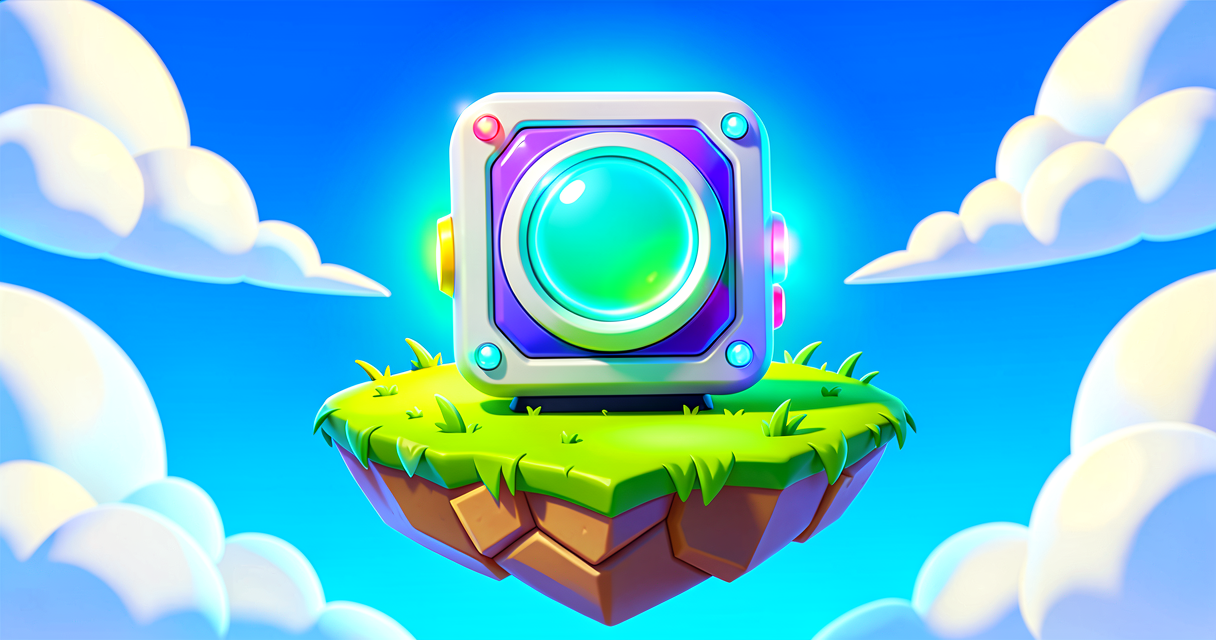
Meet the Magic Box: Your First Device
Meet the Magic Box: Your First Device
Welcome, future game maker! Have you ever played Fortnite and wondered how a door opens or a trap triggers? The secret is Devices.
In this tutorial, you will meet your first coding partner. You will learn how to make a button that changes a wall’s color. It is like magic, but it is actually logic!
What You'll Learn
- What a Device is in Fortnite.
- How to connect devices together.
- How to write a tiny bit of Verse code.
- How to make a game mechanic happen.
How It Works
Imagine you are building a LEGO castle. You have bricks. Some bricks are just decorations. They look nice, but they do nothing. These are like Props.
But some LEGO pieces are special. Some are wheels. Some are hinges. They do things. In Fortnite, these special pieces are called Devices.
A device is a box with a job.
- A Button device waits for a player to step on it.
- A Prop Mover device moves things.
- A Color Changer device changes how things look.
When you put these devices on your island, they are just sitting there. They are asleep. To wake them up, we need to connect them. We use Verse code to tell them what to do.
Think of Verse like a set of instructions for a robot. You tell the robot: "If the button is pressed, then change the wall color."
In Verse, a device is an Object. An object is a thing in the game world. It has a name. It has a job. We talk to objects by writing code that links them together.
Let's Build It
We will build a simple game. You will place a button. You will place a wall. When you step on the button, the wall will turn green!
Here is the code. Copy it into a new Verse script in your island.
# This is a simple script for a button and a wall

# 1. Define our devices
# We create "slots" for our devices.
# Think of these as empty boxes waiting for devices.
device Button: ButtonDevice = device()
device Wall: PropMoverDevice = device()

# 2. The main function
# This is the brain of our script.
# It runs when the game starts.
@main
function OnGameStart(): void =
    # 3. Connect the devices
    # We tell the script which device is which.
    # In UEFN, you will patch these in the editor.
    Button = Patch[ButtonDevice]("MyButton")
    Wall = Patch[PropMoverDevice]("MyWall")

    # 4. Listen for an event
    # We wait for the button to be pressed.
    # This is called an "Event".
    Button.Pressed += func():
        # 5. Do something!
        # When the button is pressed, change the wall.
        Wall.SetColor(Color.GREEN)
Walkthrough
Let’s look at the code line by line.
Lines 6-7: Defining Devices
We say device Button. This creates a name. It is like labeling a box. We say ButtonDevice. This tells Verse what kind of box it is. It is a button box.
Lines 10-11: The Main Function
@main is a special tag. It means "Start here." The function OnGameStart is where our code begins. It is like the start button on a TV remote.
Lines 14-15: Patching
Patch is a magic word in Verse. It connects your code to the device you placed in the editor. You must name the device in UEFN exactly like the string in the code. If you name it "MyButton" in the editor, you must use "MyButton" in the code.
Lines 18-21: The Event and Action
Button.Pressed is an event. It happens when a player steps on the button. The += sign means "add this action." The action is Wall.SetColor(Color.GREEN). This tells the wall to turn green.
Try It Yourself
Now it is your turn!
Challenge: Make the wall turn Red instead of Green.
Hint: Look at line 21. Change Color.GREEN to Color.RED. Save your code. Place your button and wall in the editor. Name them "MyButton" and "MyWall". Test your island!
Did it work? Great job! You just wrote your first working game mechanic.
Recap
- A Device is a game object that does something.
- Props are decorations. Devices are for gameplay.
- Verse is the language that connects devices.
- Events are things that happen, like a button press.
- You can change how devices act by writing code.
You are now a game maker! Keep exploring. The next step is to learn about variables. They are like scoreboards that change during the game. See you in the next tutorial!
References
- https://dev.epicgames.com/documentation/en-us/fortnite-creative/fortnite-creative-glossary
- https://dev.epicgames.com/documentation/en-us/uefn/verse-glossary
- https://dev.epicgames.com/documentation/en-us/fortnite/fortnite-creative-glossary
- https://dev.epicgames.com/documentation/en-us/fortnite/discover-the-resources-waiting-for-you-as-a-fortnite-creator
- https://dev.epicgames.com/documentation/en-us/uefn/unreal-editor-for-fortnite-glossary
Verse source files
- 01-fragment.verse · fragment
Turn this into a guided course
Add Device to your free study plan — we'll suggest related pages and stitch the lot into one compile-checked, self-guided lesson with worked examples and quizzes.
References
Original tutorial generated by Verse Island from the Verse/UEFN knowledge base, with references to the Epic Games sources above. Code is validated against the knowledge base.