
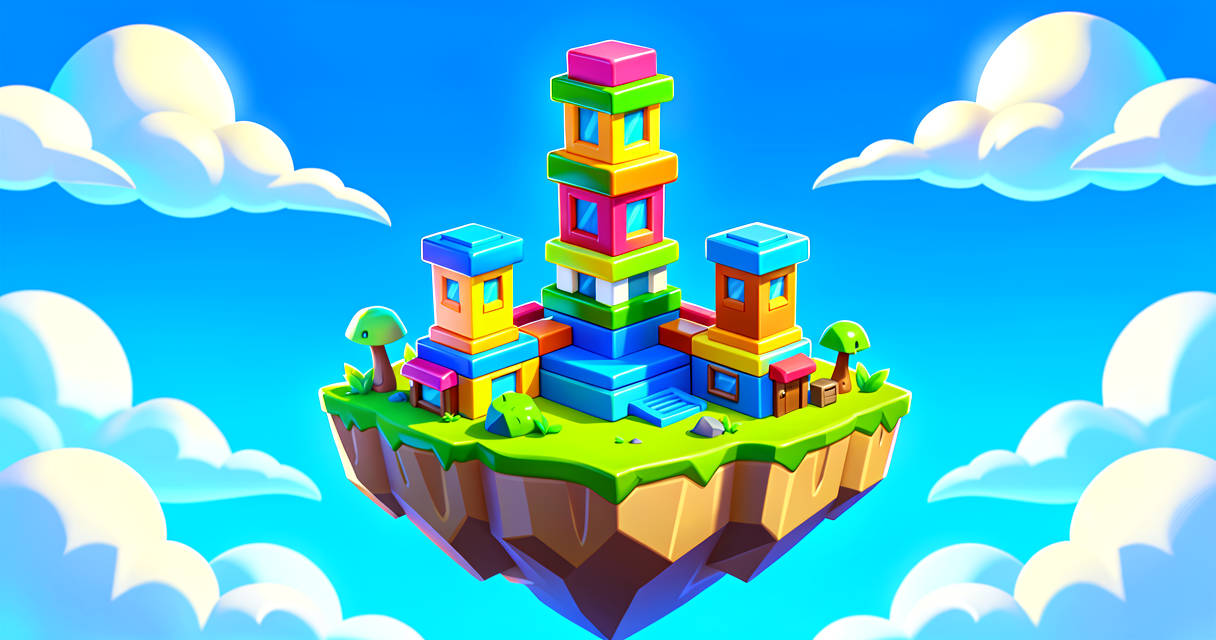
Build a Cool Island with Gallery Themes
Unverified — this example may not compile as-is.
The Verse code below did not pass our automated compile check, so it isn't marked verified and is hidden from the guide listing. The explanation may still be useful, but treat the code as a draft and adapt it before use.
Build a Cool Island with Gallery Themes
Welcome, young creators! Are you ready to build an amazing Fortnite island? Today, we will learn about Gallery Themes. These are special groups of building pieces. They help you make your island look awesome. You can pick pieces that match a specific style. Let's make your island unique!
What You'll Learn
- What a Gallery is in Fortnite Creative.
- How Themes help you pick the right style.
- How to find and use Prefabs.
- How to build a small room using these tools.
How It Works
Imagine you are building with LEGO bricks. You have many colors. You have shapes. You have wheels. If you want to build a car, you look for the wheel pieces. You do not look for tree leaves! This is how Galleries work.
A Gallery is like a big box of related items. Inside a gallery, you find walls, floors, and props. They all look good together. This is called a Theme. A theme is a style. For example, a "Futuristic" theme looks like a sci-fi movie. An "Industrial" theme looks like a factory.
When you double-click a gallery, you see all the items inside. You can pick one item. Or you can pick many. This is called a Prefab. A prefab is a pre-made set of parts. It saves you time. You do not need to pick each piece one by one. You can use the whole set.
This helps you build faster. It also makes your island look professional. The colors will match. The style will be consistent. You are the director. You choose the look.
Let's Build It
We will build a small "Futuristic" room. This is a simple start. You will see how easy it is to use themes.
First, open Fortnite Creative. Go to the Galleries tab. Search for "Futuristic". You will see many options. Pick one that looks cool. Let's call it MyCoolRoom.
Now, we will write some Verse code. This code will place the room for you. It uses a Function. A function is a set of instructions. It tells the game what to do. We will use a Device. A device is a tool in the game. We will use the Prop Spawner. It spawns props.
Here is the code. Read it carefully.
# This is a comment. It explains the code.
# We are making a simple futuristic room.

using { /Fortnite.com/Devices }
using { /Verse.org/Simulation }
using { /UnrealEngine.com/Temporary/Diagnostics }

# This is our main script.
# It runs when the game starts.
# We use a prop_spawner_base_device placed in the editor.
# Drag one into your level and assign it to this property.
futuristic_room_manager := class(creative_device):

    # This is a prop_spawner_base_device reference.
    # Assign your Prop Spawner device here in the editor.
    @editable
    RoomSpawner : prop_spawner_base_device = prop_spawner_base_device{}

    # OnBegin runs automatically when the game starts.
    OnBegin<override>()<suspends> : void =
        # We call SpawnObject on the device.
        # This spawns the prop that is already configured
        # on the Prop Spawner device in the editor.
        RoomSpawner.SpawnObject()

        # We print a message.
        # This helps us know it worked.
        Print("Room placed! Enjoy your futuristic base!")```

Let's walk through this. First, we use `using`. This brings in tools. We need tools to talk to the game. Next, we define `futuristic_room_manager`. This is our class. It extends `creative_device`. That makes it a real device in UEFN.

Inside the class, we declare `RoomSpawner`. This is our variable. It holds a reference to a `prop_spawner_device`. The `@editable` tag lets you assign it in the UEFN editor. You drag a Prop Spawner device into your level. Then you connect it here.

Then, we define `OnBegin`. This function runs automatically when the game starts. It has `<override>` because we are replacing the default version. It has `<suspends>` because it can wait for things to happen.

Inside `OnBegin`, we call `RoomSpawner.SpawnProp()`. This tells the Prop Spawner to place its prop in the world. You configure which prop it spawns directly on the device in the editor. Then we print a message. This is good for debugging. It tells us the code ran.

## Try It Yourself

Now it is your turn! Can you build an "Industrial" warehouse? Here is your challenge.

1.  Open the **Galleries** tab.
2.  Search for "Industrial".
3.  Pick a large wall or floor piece.
4.  Copy the code above.
5.  Place a new Prop Spawner device and set it to your new piece.
6.  Change the `Print` message to say "Warehouse ready!"

**Hint:** If you want to add more pieces, you can create more variables. You can add more `prop_spawner_device` references with `@editable`. Then call `SpawnProp()` on each one. Try placing the Prop Spawner devices at different locations in the editor to move pieces around.

## Recap

You learned about **Gallery Themes**. Themes are styles for your island. Galleries are boxes of related items. Prefabs are pre-made sets of parts. You used Verse to spawn a prefab. You placed it in the world. Great job, creator! Keep building.

## References

*   https://dev.epicgames.com/documentation/en-us/fortnite/using-prefabs-and-galleries-in-fortnite-creative
*   https://dev.epicgames.com/documentation/en-us/fortnite-creative/using-prefabs-and-galleries-in-fortnite-creative
*   https://dev.epicgames.com/documentation/en-us/fortnite/decoration-galleries-in-fortnite-creative
*   https://dev.epicgames.com/documentation/en-us/fortnite/futuristic-galleries-in-fortnite-creative
*   https://dev.epicgames.com/documentation/en-us/fortnite/industrial-galleries-in-fortnite-creative
Verse source files
- 01-device.verse · device
Turn this into a guided course
Add Gallery Themes to your free study plan — we'll suggest related pages and stitch the lot into one compile-checked, self-guided lesson with worked examples and quizzes.
References
Original tutorial generated by Verse Island from the Verse/UEFN knowledge base, with references to the Epic Games sources above. Code is validated against the knowledge base.