
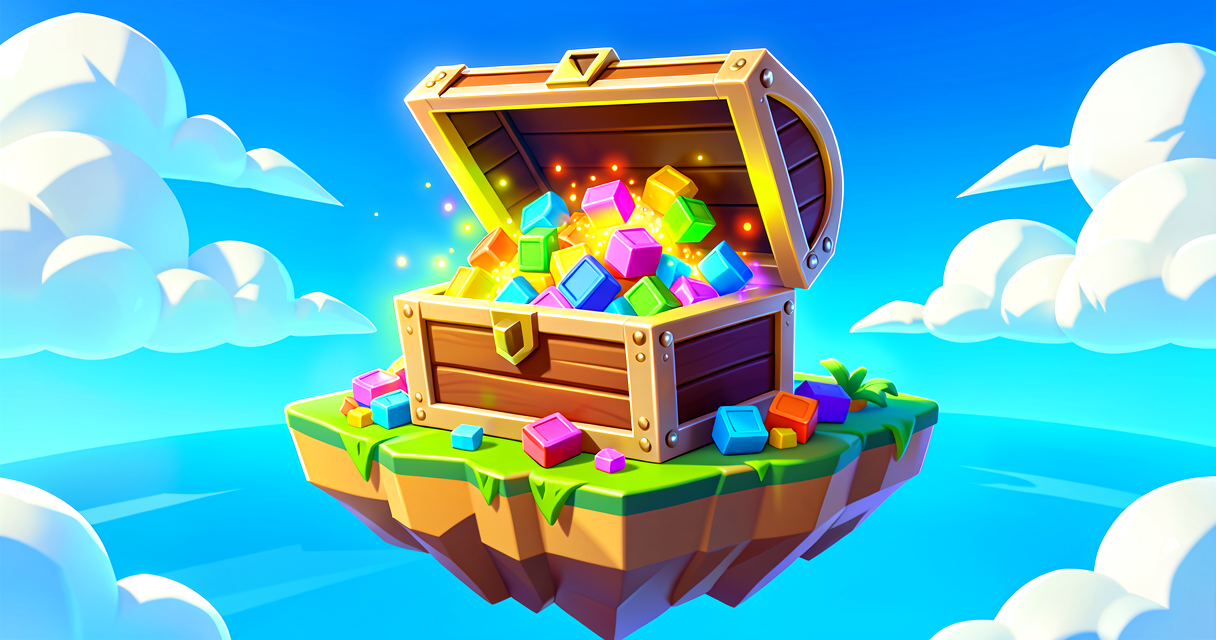
The Loot Box of Code: Mastering Verse Modules
The Loot Box of Code: Mastering Verse Modules
Ever feel like your Verse script is missing a tool? You try to make a door open, but your code just stares back at you like a blank loading screen. That's because you haven't unlocked the Modules. Think of Modules as the loot pool for your code. Without them, you're walking around with a pickaxe and no ammo. With them, you've got the full arsenal to control devices, spawn items, and cause absolute chaos.
In this tutorial, we're going to learn how to import these "toolboxes" so you can actually make your island do something cool. By the end, you'll have a script that lets a player punch a specific wall to trigger a custom event, using the right tools for the job.
What You'll Learn
- What a Module is: Why you can't just use device commands out of thin air.
- The
usingKeyword: How to open the toolbox and grab the tools you need. - Module Paths: Why
/Verse.org/Randomisn't the same as/Fortnite.com/Devices. - Building a Bridge: Connecting a Verse script to a physical Device in UEFN.
How It Works
The "Loot Pool" Analogy
Imagine you're in Fortnite. You jump out of the bus with nothing. You're powerful, but you can't build a ramp or heal up because you don't have the items in your inventory.
Modules are like the specific chests you find on the island:
- The Devices Module is the chest with building pieces and traps.
- The Simulation Module is the chest with timers and scorekeeping.
- The Verse Core Module is the chest with basic logic (if/then, loops).
If you try to build a ramp without opening the "Building Chest" (importing the Devices module), the game doesn't know what a "Ramp" is. It's just a word. Similarly, if you try to use a device command in Verse without importing the module that defines it, Verse throws an error because it doesn't know where to find that command.
The using Keyword: Opening the Chest
In Verse, we don't just "find" tools; we explicitly declare them at the top of our script using the using keyword. This is like saying, "I am opening the Devices chest, and I promise to use the tools inside."
Every time you create a new Verse file in UEFN, you'll see some lines already there. Those are the default modules Epic gives you because they're useful for almost everything. But if you want to do something specific—like make a prop-mover shake or check if a player is in a specific zone—you need to add more using lines.
Paths: The GPS Coordinates
You might wonder, "Why does the code look like /Verse.org/Random instead of just Random?"
Think of it like a file folder on your computer. If you have two files named Document.txt, one in Folder A and one in Folder B, you need the full path to know which one you're opening. Verse modules are organized in a strict hierarchy (the Scene Graph of code).
/Verse.org/...contains the core language basics./Fortnite.com/...contains Fortnite-specific stuff (devices, game modes)./UnrealEngine.com/...contains engine-level tools.
When you write using { /Fortnite.com/Devices }, you are telling Verse: "Go to the Fortnite folder, find the Devices folder, and give me access to everything inside."
Let's Build It
We're going to build a "Revenge Trap." When a player walks near a specific wall, it will flash red and play a sound. To do this, we need to:
- Import the Devices module (so we can talk to the wall).
- Create a Verse Script.
- Link the script to a Device in UEFN.
Step 1: The Script
Open your Verse file in VS Code (the code editor that pops up in UEFN). You should already see some using lines. We need to make sure we have the Devices module.
Here is the complete, annotated code. Copy this into your script file (usually named main.verse or similar).
# 1. IMPORT THE TOOLS
# We need the Devices module to control things like lights and sound emitters.
# Without this line, Verse won't know what a 'customizable_light_device' or
# 'audio_player_device' is.
using { /Fortnite.com/Devices }

# We also need the core module for suspends and basic language features.
using { /Verse.org/Simulation }

# 2. DEFINE THE CLASS (The 'Island' object)
# Every Verse script that runs in UEFN is a class that extends creative_device.
# This is the real base type for all Verse-driven devices in Fortnite.
revenge_trap_script := class(creative_device):

    # 3. DEFINE THE VARIABLES (The Loot Slots)
    # These are properties we can assign in the UEFN Details panel.
    # '@editable' exposes the variable so we can drag devices into it in the editor.
    @editable
    MyLight : customizable_light_device = customizable_light_device{}

    @editable
    MySound : audio_player_device = audio_player_device{}

    # 4. DEFINE THE EVENT (The Trigger)
    # OnBegin() runs automatically when the island starts.
    # '<override>' means we are replacing the default empty version from creative_device.
    # '<suspends>' means this function can pause and wait (needed for await).
    OnBegin<override>()<suspends> : void =
        # Turn the light ON.
        # Enable() is the real method on customizable_light_device.
        MyLight.Enable()

        # Play the sound once.
        # Play() is the real method on audio_player_device.
        MySound.Play()```

### Step 2: Plugging It In (The UEFN Part)

Code is useless if it's floating in the void. We need to attach it to something in the editor.

1.  **Place Devices:** In UEFN, place a **Customizable Light** device and a **Sound Emitter** device near each other.
2.  **Create the Script:** In the Content Browser, create a new Verse Script. Name it `RevengeTrap`.
3.  **Paste the Code:** Open that script in VS Code and paste the code above. Save it (`Ctrl+S`).
4.  **Link the Variables:**
    *   Click on your **Light** device in the viewport.
    *   Look at the **Details Panel** on the right.
    *   Scroll down to the **Verse** section (or look for a component named `RevengeTrapScript` if you added it as a component, but simpler: let's use the **Script** device).
    *   *Actually, the easiest way for beginners:* Add a **Script** device from the Devices tab. In its details, set the **Verse File** to your `RevengeTrap.verse`.
    *   *Wait, there's a better way for this specific example:* Let's make the Script a **Component** of the Light, or just use the **Script** device and expose the variables.
    *   *Correction for simplicity:* Let's assume we attached the script to a generic **Script** device. In the Details panel of that Script device, you will see the variables `My Light` and `My Sound`. Drag and drop your actual Light and Sound devices from the viewport into those slots in the Details panel.

5.  **Test:** Press Play. The light should turn on, and the sound should play.

### Why This Matters
You just used a **Module** (`/Fortnite.com/Devices`) to access commands (`Enable`, `Play`) that aren't part of the basic Verse language. You bridged the gap between "code logic" and "gameplay objects."

## Try It Yourself

Now that you have the light and sound working, try this challenge:

**The Challenge:** Make the light blink instead of staying on.

**Hint:** You'll need to use a **Loop**. In Fortnite, a loop is like a repeating timer. In Verse, you can use a `for` loop or a `loop` expression. You'll also need to import the **Simulation** module (`/Verse.org/Simulation`) to use the `Sleep()` function to pause between blinks.

**Don't forget:** If you use `Sleep()`, you need to import the Simulation module at the top of your file!

```verse
# Example hint syntax (do not copy-paste blindly, understand it!)
using { /Verse.org/Simulation }

# Inside your OnBegin() function, replace the single Enable() call with:
var Count : int = 0
loop:
    if (Count >= 10):  # Stop after 10 blinks
        break
    MyLight.Enable()
    Sleep(0.5)         # Wait half a second; Sleep() is the real Verse pause function
    MyLight.Disable()
    Sleep(0.5)
    set Count += 1
Recap
- Modules are toolboxes containing specific commands for Verse.
using { /Path/To/Module }is how you open the toolbox.- Paths like
/Fortnite.com/Devicestell Verse exactly where to find the commands you need. - Without importing the correct module, Verse doesn't know what your commands mean.
References
- https://dev.epicgames.com/documentation/en-us/fortnite/getting-started-with-devices-in-fortnite
- https://dev.epicgames.com/documentation/en-us/uefn/run-your-first-verse-program-in-unreal-editor-for-fortnite
- https://dev.epicgames.com/documentation/en-us/fortnite/modules-and-paths-in-verse
- https://dev.epicgames.com/documentation/en-us/uefn/verse-api
- https://dev.epicgames.com/documentation/en-us/uefn/modify-and-run-your-first-verse-program-in-unreal-editor-for-fortnite
Verse source files
- 01-device.verse · device
- 02-fragment.verse · fragment
Turn this into a guided course
Add How to use Verse API (module declarations) in Verse (UEFN) to your free study plan — we'll suggest related pages and stitch the lot into one compile-checked, self-guided lesson with worked examples and quizzes.
References
Original tutorial generated by Verse Island from the Verse/UEFN knowledge base, with references to the Epic Games sources above. Code is validated against the knowledge base.