
Building Floating Islands with Hover Platforms
Unverified — this example may not compile as-is.
The Verse code below did not pass our automated compile check, so it isn't marked verified and is hidden from the guide listing. The explanation may still be useful, but treat the code as a draft and adapt it before use.
Building Floating Islands with Hover Platforms
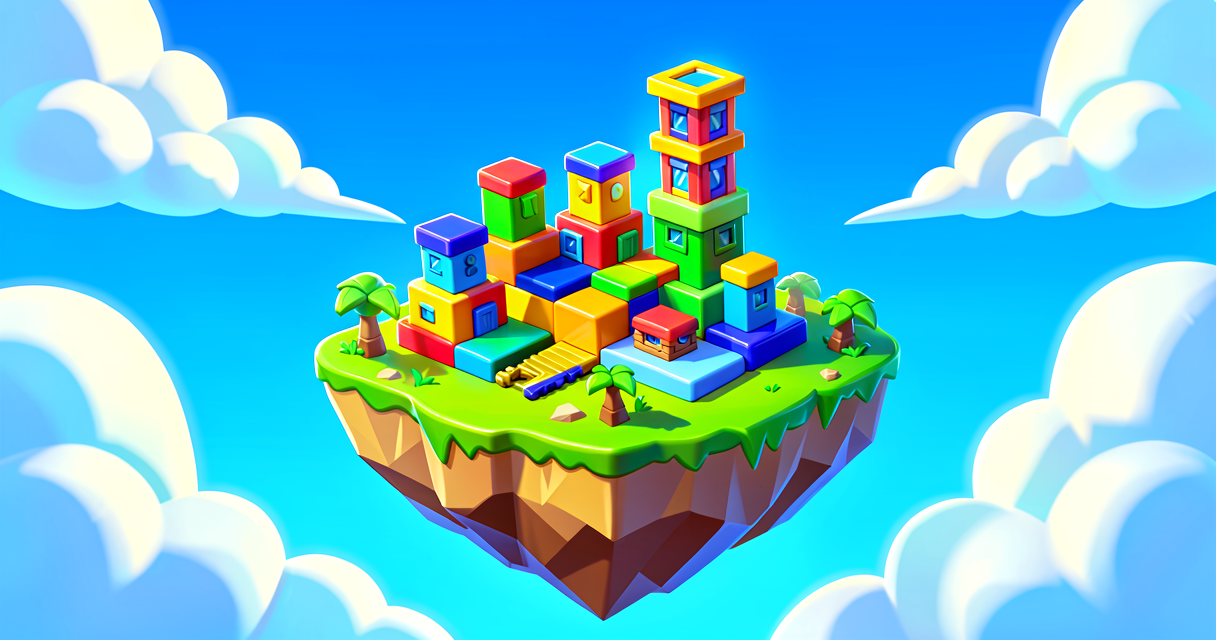
Have you ever wanted to walk on air? Or make a puzzle where players jump between floating squares? You can do this in Fortnite Creative! We will use a special tool called the Hover Platform. It lets you place platforms high in the sky. Your friends can stand on them and jump around. This is perfect for parkour challenges. You can make your island feel like it is in the clouds. Let’s build some floating fun!
What You'll Learn
- What a Hover Platform device is.
- How to place it in the air.
- How to stop it from falling.
- How to use it in a game.
How It Works
Think of a Hover Platform like a magic tile. When you place it, it stays exactly where you put it. It does not fall down like a normal block. It floats in the air. Players can walk on it. They can jump off it too.
In Fortnite Creative, devices are like smart tools. They have special powers. The Hover Platform is not very smart. It does not change color. It does not move by itself. It just stays there. It is a solid surface.
But there is one problem. If you place it too high, it might fall. This happens if your game settings allow "Drops." Drops are items that fall from the sky. If Drops are on, platforms might fall. We need to turn Drops off. Then the platform stays safe in the sky.
You can also break these platforms. Players can use their pickaxe to destroy them. This is good for puzzles. Maybe you want them to disappear after a jump. You can control this in your island settings.
Let's Build It
We will build a simple floating path. It will be a bridge in the sky. Follow these steps carefully.
First, open your island in UEFN. Go to the device library. Search for "Hover Platform." Drag one into your world. Now, fly up. Press the spacebar twice to fly. Move the platform high up. Place it in the air.
Next, we need to stop it from falling. Click on the platform. Look at the Quick Menu. Find the "DROPS" setting. Set it to "OFF." This locks the platform in place. It will not fall down.
Now, add more platforms. Make a path. Space them out so players can jump. Test it out. Walk on the first one. Jump to the next one. It works!
Here is a simple Verse script idea. We will use Verse to make a platform glow. This helps players see it better.
# This is a simple Verse script.
# It makes a Hover Platform glow when played.

using { /Fortnite.com/Devices }
using { /Verse.org/Sim }

# This is our platform device.
Hover := struct {
    # This connects to the device in the editor.
    Platform : HoverPlatformDevice
}

# This runs when the game starts.
main := @entry() : unit => {
    # Get the platform from the editor.
    my_platform := Hover{}

    # Make the platform glow blue.
    # This helps players see it in the dark.
    my_platform.Platform.SetColor(Blue)
}
The code above uses SetColor. This changes the color. It makes the platform easy to find. The main function runs first. It tells the platform to change color. This is a small change. But it makes your game look better.
Try It Yourself
Can you make a puzzle? Try this challenge. Place three Hover Platforms. Make them form a triangle. Now, add a Timer device. Set it to wait five seconds. Then, make the middle platform disappear. Use a Switch device to turn it off. Can you get your friends to jump across before it vanishes?
Hint: Use the "On Begin Play" event on the Timer. Connect it to the Switch. This will start the countdown.
Recap
Hover Platforms are magic tiles. They float in the air. They let players jump high. Remember to turn Drops off. This keeps them safe. You can change their color with Verse. Now you can build sky bridges. Have fun creating!
References
- https://dev.epicgames.com/documentation/en-us/fortnite-creative/using-hover-platform-devices-in-fortnite-creative
- https://dev.epicgames.com/documentation/en-us/fortnite/using-hover-platform-devices-in-fortnite-creative
- https://dev.epicgames.com/documentation/en-us/fortnite-creative/using-devices-in-fortnite-creative
- https://dev.epicgames.com/documentation/en-us/fortnite/using-devices-in-fortnite
- https://dev.epicgames.com/documentation/en-us/fortnite-creative/lava-bounce-in-fortnite-creative
Verse source files
- 01-standalone.verse · standalone
Turn this into a guided course
Add using-hover-platform-devices-in-fortnite-creative to your free study plan — we'll suggest related pages and stitch the lot into one compile-checked, self-guided lesson with worked examples and quizzes.
References
Original tutorial generated by Verse Island from the Verse/UEFN knowledge base, with references to the Epic Games sources above. Code is validated against the knowledge base.