
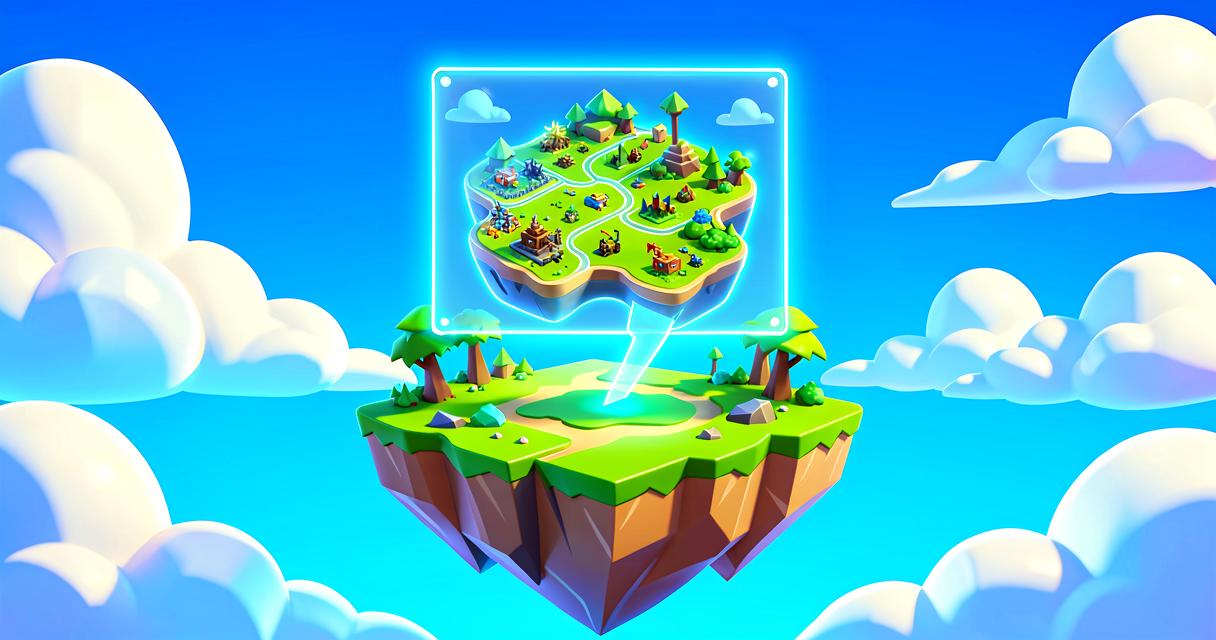
Stop Letting Players Get Lost: How to Build Smart Map Markers in Verse
Stop Letting Players Get Lost: How to Build Smart Map Markers in Verse
You know the feeling. You drop onto an island, the storm is closing in, and you're sprinting across the map trying to find that one secret loot cave. But wait—there's no compass, no waypoint, and no idea if you're heading toward victory or a random pile of rocks. That's not just bad design; that's player rage bait.
In this tutorial, we're going to fix that. We're going to use Verse to create Map Indicator devices. Think of these like the "Pings" you use to call out a location to your squad, but permanent, customizable, and visible to everyone on the minimap and the overview map. By the end of this, you'll have a system that dynamically updates your island's map with objectives, loot zones, or even "Do Not Enter" zones, all controlled by code.
What You'll Learn
- Scene Graph Basics: How Verse sees your island as a hierarchy of objects (Entities and Components).
- Map Indicators: How to programmatically spawn icons on the minimap.
- Dynamic Updates: How to change marker text and visibility based on game events (like a timer or a player action).
- Team Logic: How to show specific markers only to specific teams.
How It Works
Before we write a single line of code, let's break down the concept using Fortnite mechanics you already know.
The Scene Graph: Your Island is a Tree
In Unreal Engine 6 (and Verse), your island isn't just a flat image. It's a Scene Graph. Imagine a family tree.
- The Root is the entire game instance.
- Branches are Entities (like a specific wall, a player, or a device).
- Leaves are Components (the properties attached to that entity, like its position, color, or whether it has a health bar).
When you place a Map Indicator device in the Creative editor, you are placing an Entity. That Entity has a Component that tells the game: "Hey, draw an icon on the minimap at this location."
Map Indicators = Minimap Pings
A Map Indicator is essentially a waypoint.
- Icon: The shape (e.g., a circle, a triangle, a custom icon).
- Label: The text that pops up when you hover over it (like "Loot Cache" or "Boss Arena").
- Visibility: Who can see it? In a standard match, everyone sees it. But in a custom game, maybe only the "Red Team" sees the enemy base marker, while "Blue Team" sees their own spawn point.
Why Verse?
You could place these devices manually in the editor. But what if you want a marker to appear only when a player picks up an item? Or disappear when the storm hits the final circle? That's where Verse comes in. Verse lets you control the indicator's state (visible/hidden, text, icon) via code, reacting to game events in real-time.
Let's Build It
We're going to build a simple system: A "Loot Goblin" marker. When a player enters a specific zone, a Map Indicator appears on the minimap showing "Goblin Hideout." If they leave, it disappears.
Step 1: The Setup
- Open your island in UEFN.
- Place a Trigger Volume device where you want the marker to appear.
- Place a Map Indicator device at the same location (or wherever you want the icon to show). Let's call this device
MyMapMarker. - Create a new Verse file in your project.
Step 2: The Verse Code
Here is the complete, annotated code. Don't worry if it looks scary—we'll break it down line by line.
# Import necessary libraries
using { /Fortnite.com/Devices }
using { /Verse.org/Simulation }
using { /Fortnite.com/Characters }

# Define our device. This connects the code to the Map Indicator in the editor.
# Think of 'MyMapIndicator' as a remote control for the device placed in the level.
my_marker_device := class(creative_device):

    # This is a 'Variable'. It's a container that can hold different values.
    # Here, it holds the reference to the Map Indicator device we placed.
    # Wire this to your placed Map Indicator device in the UEFN editor.
    @editable
    Marker : map_indicator_device = map_indicator_device{}

    # Wire this to your placed Trigger device in the UEFN editor.
    @editable
    Trigger : trigger_device = trigger_device{}

    # This is a 'Function'. A block of code that performs a specific task.
    # 'OnBegin' runs automatically when the game starts.
    OnBegin<override>()<suspends> : void =
        # 'Print' outputs a message to the debug console. Good for testing.
        Print("Marker system initialized!")

        # Hide the marker at startup so it only appears on overlap.
        Marker.Disable()

        # Subscribe to the trigger's overlap events.
        # When a player enters, ShowMarker runs. When they leave, HideMarker runs.
        Trigger.TriggeredEvent.Subscribe(ShowMarker)

    # This function will be called when a player enters the trigger volume.
    # We'll link this to the Trigger Volume's TriggeredEvent above.
    ShowMarker(MaybeAgent : ?agent) : void =
        # Enable makes the map_indicator_device visible on the minimap.
        # map_indicator_device exposes Enable/Disable for runtime visibility control.
        Marker.Enable()
        Print("Goblin Hideout marker shown!")

    # This function hides the marker.
    HideMarker(MaybeAgent : ?agent) : void =
        # Disable removes the marker from the minimap.
        Marker.Disable()
        Print("Goblin Hideout marker hidden!")```

### Step 3: Connecting the Dots
Now that the code is written, we need to tell the game *when* to run it.

1.  **Link the Device:** In the editor, select your **Map Indicator** device. In the properties panel, look for the "Verse" section. Assign the `my_marker_device` class to it.
2.  **Link the Trigger:** Place a **Trigger** device near the marker.
3.  **Wire the Events:**
    *   Select your `my_marker_device` in the Outliner.
    *   In the Details panel, find the `Marker` slot and assign your placed **Map Indicator** device to it.
    *   Find the `Trigger` slot and assign your placed **Trigger** device to it.
    *   The Verse code handles the rest — `TriggeredEvent` fires `ShowMarker` and `ExitedEvent` fires `HideMarker` automatically at runtime.

*Note: The `@editable` attribute exposes a field in the UEFN Details panel so you can drag-and-drop your placed devices directly into the slots — no manual wiring of pins required.*

### What Just Happened?
*   **Entity:** The `map_indicator_device` is an Entity in the Scene Graph.
*   **Component:** Its enabled/disabled state controls whether the icon appears on the minimap.
*   **Function:** `ShowMarker()` and `HideMarker()` are functions that modify that state.
*   **Event:** The Trigger device's `TriggeredEvent` and `ExitedEvent` call these functions automatically.

## Try It Yourself

You've got the basics. Now, make it cooler.

**Challenge:** Add a condition so that the "Goblin Hideout" marker *only* appears if the player is on **Team 1**. If a Team 2 player enters the zone, the marker should remain hidden.

**Hint:** Look into the `SetTeamVisibility` or similar properties on the `map_indicator_device`. You can also check the player's team using `Player.GetTeam()` inside your `ShowMarker` function before calling `Enable`.

## Recap

*   **Map Indicators** are devices that place icons on the minimap and overview map.
*   **Verse** allows you to control these indicators dynamically via code, changing their text, icon, and visibility.
*   **The Scene Graph** treats devices as Entities with Components, which you manipulate using Functions.
*   **Events** (like player overlaps) trigger your Verse functions, creating interactive, responsive gameplay.

## References

*   https://dev.epicgames.com/documentation/en-us/fortnite-creative/using-map-indicator-devices-in-fortnite-creative
*   https://dev.epicgames.com/documentation/en-us/fortnite/using-map-indicator-devices-in-fortnite-creative
*   https://dev.epicgames.com/documentation/en-us/fortnite/onboarding-players-in-fortnite-creative
*   https://dev.epicgames.com/documentation/en-us/fortnite-creative/onboarding-players-in-fortnite-creative
*   https://dev.epicgames.com/documentation/en-us/fortnite/fortnite-creative-glossary
Verse source files
- 01-device.verse · device
Turn this into a guided course
Add using-map-indicator-devices-in-fortnite-creative to your free study plan — we'll suggest related pages and stitch the lot into one compile-checked, self-guided lesson with worked examples and quizzes.
References
Original tutorial generated by Verse Island from the Verse/UEFN knowledge base, with references to the Epic Games sources above. Code is validated against the knowledge base.