

How to Make Devices Talk to Each Other in Verse
Unverified — this example may not compile as-is.
The Verse code below did not pass our automated compile check, so it isn't marked verified and is hidden from the guide listing. The explanation may still be useful, but treat the code as a draft and adapt it before use.
How to Make Devices Talk to Each Other in Verse
Have you ever wondered how a button press makes a door open? Or how a timer can turn off a light? In Fortnite Creative, devices usually talk to each other using wires. But wires can get messy!
In this tutorial, we will use Verse to make devices talk directly. We will build a simple "Secret Room" door. When you press a button, the door opens. It is like giving the devices a direct phone line. No messy wires needed!
What You'll Learn
- What an event is (a signal that something happened).
- How to write a function (a set of instructions).
- How to subscribe to an event (listening for a signal).
- How to connect a Button device to a Door device using code.
How It Works
<!-- section-art:how-it-works -->

Event Handshake
Imagine you are in a classroom. The teacher raises her hand. This is an event. It means "Pay attention now!"
If you are listening, you look at the teacher. This is called subscribing to the event. You are ready to react.
In Verse, devices do the same thing.
- A Button has an event called
InteractedWithEvent. This fires when a player presses it. - A Door has a function called
Open(). This makes the door swing wide. - We write code to say: "When the Button event happens, please call the Door's Open function."
This is much cleaner than using fifty wires. It is like a direct handshake between two friends.
Let's Build It
<!-- section-art:let-s-build-it -->
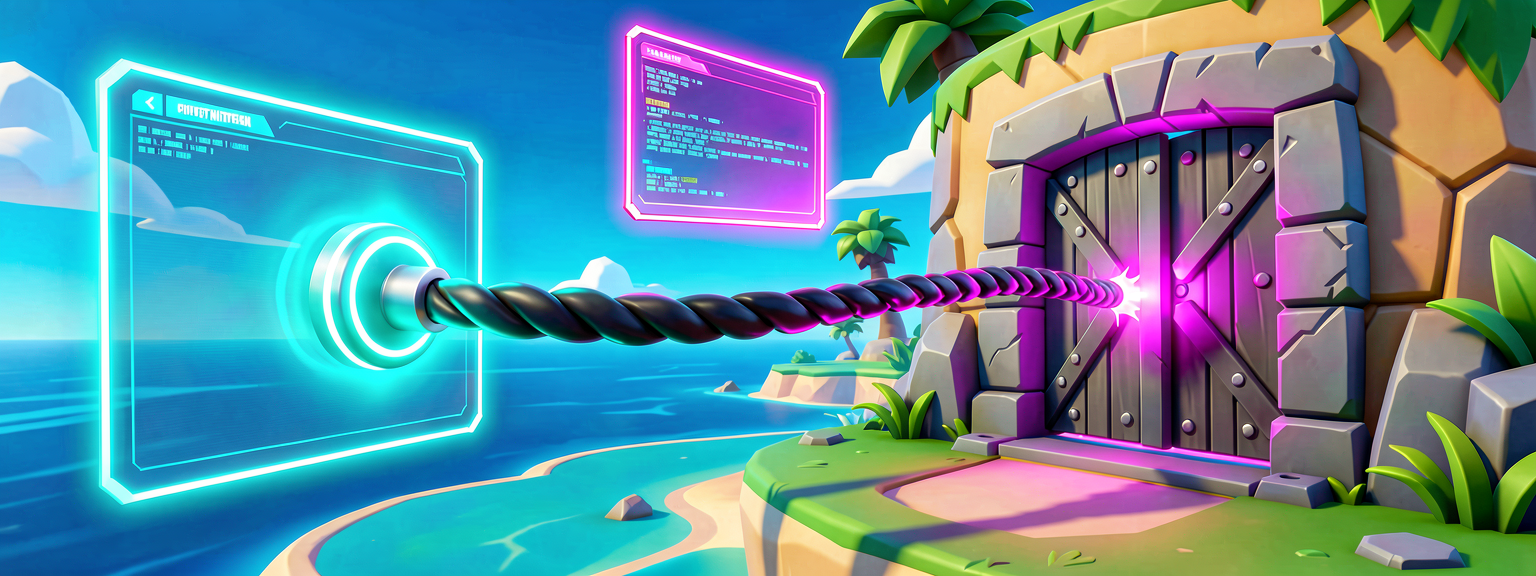
Device Linkage
We will create a custom device. This device will hold both the logic and the connection.
Step 1: Set Up Your Island
- Open UEFN and create a new island.
- Place a Button device in the world.
- Place a Door device nearby.
- Add a Verse Authoring device (or just use a Verse Script if you prefer, but a Verse-authored device is easier for beginners). Note: For this tutorial, we will write a Verse Script that you attach to a generic object, or use the Verse Authoring device to define the behavior. Let's use the Verse Authoring Device for simplicity.
Step 2: Write the Code
Click on your Verse Authoring device to open the code editor. Paste this code in.
using { /Fortnite.com/Devices }
using { /Verse.org/Simulation }

# This is our custom device. It holds the button and door.
# Think of it as a box containing both parts.
MySecretDoor := class(creative_device):

    # These are the pieces we will connect in the editor.
    # A 'variable' is a name for a thing that can change.
    @editable
    Button : button_device = button_device{}

    @editable
    Door : door_device = door_device{}

    # This function runs when the game starts.
    # It sets up the "phone line" between button and door.
    OnBegin<override>()<suspends> : void =
        # Subscribe means "listen for this event."
        # When the button is pressed, run the OpenDoor function.
        Button.InteractedWithEvent.Subscribe(OpenDoor)

    # This is the function that actually opens the door.
    # The agent parameter is required by InteractedWithEvent's delegate signature.
    OpenDoor(Agent : agent) : void =
        # This tells the door to open!
        Door.Open()

        # Let's add a little delay so the door doesn't snap instantly.
        # It waits 1 second, then closes.
        Sleep(1.0)
        Door.Close()
Step 3: Connect the Wires (In the Editor)
Code is just the plan. Now we need to build the house.
- In the UEFN editor, click on your Verse Authoring device.
- Look at the Details panel on the right.
- Find the Button slot. Drag your Button device from the world into this slot.
- Find the Door slot. Drag your Door device from the world into this slot.
- Save and Play!
What Just Happened?
When you press the button, the InteractedWithEvent fires. Your code hears it. It calls OpenDoor(). The door opens. Then it waits one second. Then it closes. You made two devices talk without a single wire!
Try It Yourself
Great job! You made a door. Now, let's make it more fun.
Challenge: Can you make the door stay open longer if the player holds the button?
Hint:
Look at the Sleep() function. You can change the number inside the parentheses. Try changing 1.0 to 3.0. What happens?
Bonus Hint:
If you want the door to stay open while the button is held, you might need to look at the IsPressed property of the button. But for now, just try changing the wait time!
Recap
- Events are signals. Like a bell ringing in school.
- Functions are actions. Like raising your hand.
- Subscribe means you listen for the signal.
- Verse lets devices talk directly. It is cleaner and cooler than wires.
You just wrote your first interactive logic in Verse! Keep experimenting. What other devices can you connect?
References
- https://dev.epicgames.com/documentation/en-us/fortnite/coding-device-interactions-in-verse
- https://dev.epicgames.com/documentation/en-us/uefn/coding-device-interactions-in-verse
- https://dev.epicgames.com/documentation/fortnite/verse-api/fortnitedotcom/devices/conversation_device
- https://dev.epicgames.com/documentation/en-us/fortnite/verse-api/fortnitedotcom/devices/conversation_device
- https://dev.epicgames.com/documentation/en-us/fortnite/create-your-own-device-using-verse-in-unreal-editor-for-fortnite
Verse source files
- 01-device.verse · device
Turn this into a guided course
Add Verse events and how devices talk to each other to your free study plan — we'll suggest related pages and stitch the lot into one compile-checked, self-guided lesson with worked examples and quizzes.
References
Original tutorial generated by Verse Island from the Verse/UEFN knowledge base, with references to the Epic Games sources above. Code is validated against the knowledge base.