
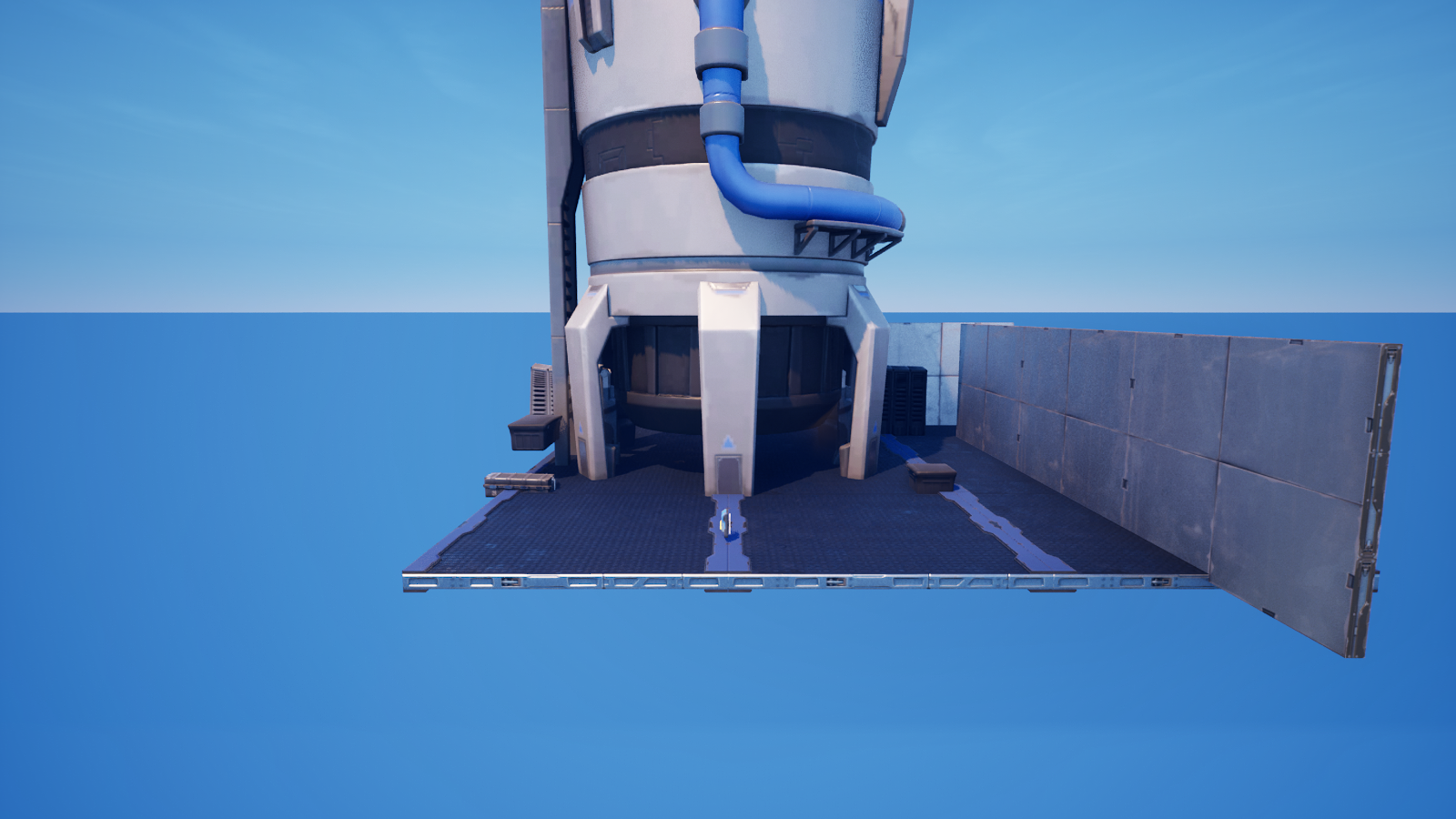
Press to Perform: Driving a Skeletal Mesh from Verse
Press to Perform: Driving a Skeletal Mesh from Verse
Welcome to Skeletal & Sequenced Animation — the part of the scene graph where rigged characters, animated meshes, and full cinematic shots come alive on command. Before we build anything, one honest heads-up that will save you a week of frustration.
The trap: you can't hand-build an animation in Verse
<!-- section-art:the-trap-you-can-t-hand-build-an-animation-in-ve -->

The Animation Lock
If you go digging through the API for "play an animation on a character," you'll find GetPlayAnimationController and a Play(AnimationSequence) method. It looks like you can just write Character.Play(MyCoolDance) and ship it. You can't — and here's why:
- The
play_animation_controllerinterface is marked<epic_internal>. It isn't part of the public creator surface. - The thing it wants — an
animation_sequence— is an<epic_internal>asset type with no Verse constructor. You can't build one in code; it has to be an animation asset imported into your project, and the bridge to use it is closed to creators.
So pure-Verse "spawn a skeletal animation from scratch" is not a thing right now. That's the truth, and padding a lesson with Character.Play(SomeMadeUpAnim) would teach you code that never compiles.
The good news: there's a fully public, fully Verse-drivable door to skeletal animation — the Animated Mesh device. You pick the skeletal mesh and its animation in the editor, drop it on the device, and then drive its playback from Verse. That's exactly how the pros wire up animated statues, dancing holograms, swinging gates, and idle creatures. This whole series lives on that public surface — every line compiles.
The Animated Mesh device: three buttons of transport
The device's Verse surface is tiny and friendly — three transport calls:
Statue.Play()          # start (or resume) the animation
Statue.Pause()         # freeze on the current frame
Statue.PlayReverse()   # run it backwards
That's the whole skeletal-animation API you need for a huge range of effects. The device remembers its own playhead, so Pause() freezes mid-motion and the next Play() resumes from exactly there — you get scrubbing for free.
To use it: drop an Animated Mesh device in your level, and in its Details panel pick a skeletal mesh and an animation for it to play. Verse never touches the mesh or the animation asset — it just presses the buttons.
One button, a full transport panel
<!-- section-art:one-button-a-full-transport-panel -->

Button Cycle
Let's wire a single Button so each press cycles Play → Pause → PlayReverse → Play…. We track which move comes next in a counter and wrap it with the failable Mod[]:
The pieces worth noticing:
Statue : animated_mesh_device— the@editableslot you drag your Animated Mesh device into. The device carries the skeletal mesh; Verse just commands it.case (Step):— a clean switch over our counter.0plays,1pauses, anything else (_) reverses.Mod[Step + 1, 3]— Verse has no%operator;Mod[]is the built-in failable modulo (it only fails on divide-by-zero, which can't happen with3). Theifre-bindsStepto the wrapped result, so the counter loops 0→1→2→0 forever.var Step— a mutable field. You change avarwithset, never plain=.
This device is compile-verified in UEFN 5.8 (the whole project builds clean with it installed). Grab it from the download panel as 03-device.verse, drop an Animated Mesh device and a Button in your level, and wire the two @editable slots.
Recap
- You cannot construct an
animation_sequencein Verse — that type and theplay_animation_controllerthat plays it are<epic_internal>. Pure-code skeletal animation isn't available to creators. - The Animated Mesh device is the public, Verse-drivable door to skeletal animation: pick the mesh + animation in the editor, drive playback from code.
- Its transport is three calls:
Play(),Pause(),PlayReverse()— and the device remembers its own playhead, so pause/resume just works. - Verse has no
%; use the failableMod[]for wrap-around counters. - Change a
varfield withset, and switch on a value withcase.
Next — Part 2: Lights, Camera, Verse — we step up from one mesh to a whole shot: cameras, lights, and multiple animated objects choreographed in Sequencer, all rolled from Verse.
Get the complete code — free
You've read the full walkthrough. The complete, copy-paste-ready Verse solution is free for members — sign in to unlock it.
Free with your BrainDead.TV / BrainDeadGuild Discord account. The walkthrough above is always free.
Verse source files
- 01-fragment.verse · fragment
- 03-device.verse · device
Check your understanding
Test yourself with an interactive quiz and track your progress + earn XP — free for members.
Turn this into a guided course
Add UEFN Verse skeletal animation — animated_mesh_device Play/Pause/PlayReverse, why animation_sequence is epic_internal, Mod[], case, var/set to your free study plan — we'll suggest related pages and stitch the lot into one compile-checked, self-guided lesson with worked examples and quizzes.
References
Original tutorial generated by Verse Island from the Verse/UEFN knowledge base, with references to the Epic Games sources above. Code is validated against the knowledge base.