
Dynamic Movement
Dynamic Movement
Use material nodes to make a material that seems to be alive. To create this effect, youll configure your material nodes and plug them into the World Position Offset input of the Main Material node.
Use material nodes to make a material that seems to be alive. To create this effect, you’ll configure your material nodes and plug them into the World Position Offset input of the Main Material node.
Use material nodes to make a material that seems to be alive. To create this effect, you’ll configure your material nodes and plug them into the World Position Offset input of the Main Material node.
Follow the instructions below to create a dynamic material.
-
Create a new material in the mesh’s Material folder and name it Moving_Mesh.
-
Change the sphere to a flat surface in the preview window.
-
Add the following nodes:
- 3 X Multiply node
- Sine node
- VertexNormalWS node
- Add node
- Time node
- TextureSample node
-
Use a TextureSample node and add a badge texture to the sample in the Details panel.
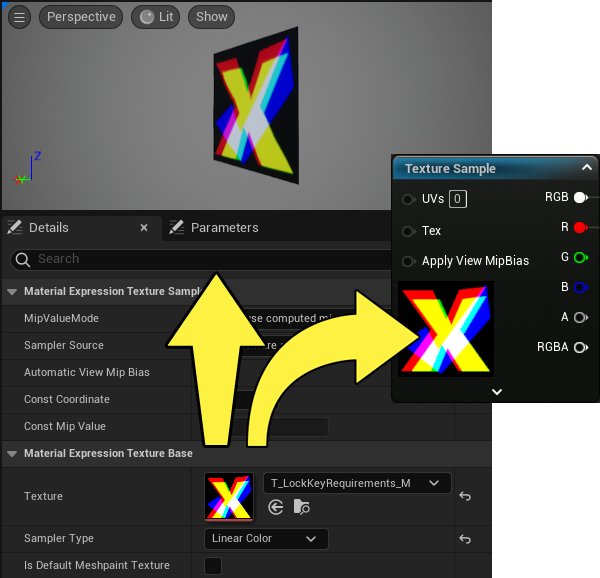
-
Drag off the RGB input on the Texture Sample node and plug into the Base Color input on the Main Material Node.
-
Drag off the VertexNormalWS node and plug it into the first Multiply node A input.
-
Drag off the first Multiply node and plug it into the second Multiply node’s A input.
-
Drag off the second Multiply node and plug it into the Main Material Node World Position Offset input.
-
Drag off the Texture Sample node and plug it into the first Multiply node B input from the R input (red UV channel input).
You're reading a preview
The full reference is free for BrainDeadGuild Discord members — sign in to read it all, or open the original at the source.
Sign in with your BrainDead.TV / BrainDeadGuild Discord account for full access.