
Building Your First Digital World: Creating a New Project
Building Your First Digital World: Creating a New Project
Welcome, young creators! Have you ever dreamed of building your own world in Fortnite? Now you can. We are going to start your very first adventure in Unreal Editor for Fortnite (UEFN). This is where you turn big ideas into playable games.
Think of starting a project like drawing a map before you build a treehouse. You need a plan. Then, you pick your tools. Today, we will open the editor. We will set up the rules for our game. By the end, you will have a fresh canvas ready for magic.
What You'll Learn
- How to open the UEFN editor.
- How to choose a starting point for your island.
- What an Island Settings device is.
- How to change basic game rules like player count.
How It Works
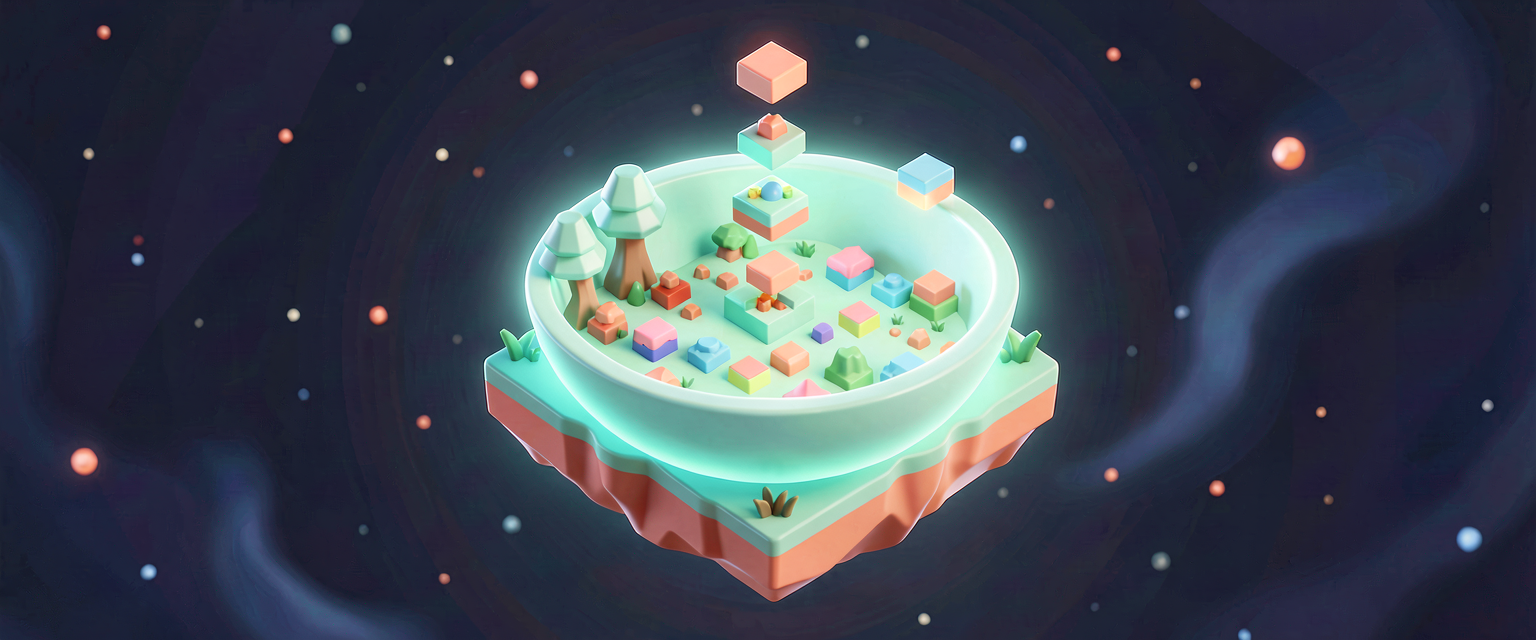
Imagine you are baking a cake. You need a bowl before you add ingredients. In UEFN, your Project is that bowl. It holds everything you make.
When you start, you pick a "template." This is like choosing a cake flavor. You can start with a blank slate. Or you can pick a pre-made island. For beginners, a blank slate is best. It is like a clean sheet of paper.
Once inside, you see a big window. This is your workspace. On the side, there is a list called the Outliner. Think of the Outliner as a toy box. It lists every toy (or object) in your room. One of those toys is called IslandSettings.
This device is special. It controls the rules of the whole island. It decides how many players can join. It decides if teams fight or work together. It is like the referee of a sports game. We will tweak these rules to make our game fun.
Let's Build It
We will create a small cooperative game. "Cooperative" means players work together. They are on the same team.
First, open UEFN. Click to create a new empty project. Wait for the editor to load. It might take a moment. Be patient!
Next, look at the Outliner on the left. Find IslandSettings. Click it once. Now look at the panel on the right. This is the Details panel. It shows the settings for IslandSettings.
We will change four things. Find these options in the panel.
- Max Players: Set this to
4. This means up to four friends can play. - Teams: Change this to
Cooperative. Now everyone helps each other. - Team Size: Set this to
4. This matches our max players. - Spawn Pad Selection: Set this to
Near Teammates. Players will appear close together.
These settings are like the rules of a board game. They happen before the game starts. They do not change during play.
Here is how this looks in code. In Verse, we write instructions for the computer. We tell it what the rules are.
# This is a comment. It is for humans only.
# The computer ignores it.

# We are setting up the game rules.
# Think of this as writing the rulebook.
#
# Island-wide options like max players, team type, team size,
# and spawn strategy are configured in the IslandSettings device
# inside the UEFN editor Details panel — not through Verse API
# calls. The Verse class below shows how you would hold a
# typed reference to that device and read its values in code.

using { /Fortnite.com/Devices }
using { /Verse.org/Simulation }
using { /UnrealEngine.com/Temporary/Diagnostics }

# island_setup is a Verse device you can place in your level.
# It does not replace the IslandSettings device; it works
# alongside it to print the active rule choices at game start.
island_setup := class(creative_device):

    # OnBegin runs once when the experience starts.
    OnBegin<override>()<suspends> : void =
        # Log a message to the Output Log for debugging.
        Print("Island setup complete.")
        # Spawn strategy is set in the IslandSettings Details
        # panel (Near Teammates). There is no Verse getter for
        # it, so no call is needed here.                     # Players spawn close to friends.```

Each line tells the engine one rule. `GetMaxPlayers` reads the crowd limit. `GetTeams` checks the team mood. The spawn strategy is wired up in the Details panel, and a comment marks where that rule lives. Simple, right?

## Try It Yourself

Now it is your turn to experiment. You have the basics. What happens if you change the rules?

**Challenge:** Change the **Max Players** to `1`. Then change it back to `4`. Save your project. Play it in preview mode. Does the game feel different?

**Hint:** Think about how it feels to play alone versus playing with friends. Which one do you prefer for a puzzle game?

## Recap

You did it! You created a new project. You opened the editor. You found the IslandSettings device. You set the rules for a cooperative game. You are now ready to build. Next, we will add objects to your world. Keep creating!

## References

*   https://dev.epicgames.com/documentation/en-us/fortnite/starting-and-organizing-a-project-in-fortnite
*   https://dev.epicgames.com/documentation/en-us/fortnite/theme-park-lesson-plan-in-fortnite-creative
*   https://dev.epicgames.com/documentation/en-us/fortnite-creative/lesson-plan-theme-park-of-the-future-in-fortnite-creative
*   https://dev.epicgames.com/documentation/en-us/fortnite-creative/publishing-page-features-in-fortnite-creative
*   https://dev.epicgames.com/documentation/en-us/uefn/verse-stronghold-template-1-create-a-new-project-in-unreal-editor-for-fortnite
Verse source files
- 01-device.verse · device
Turn this into a guided course
Add 1. Creating a New Project to your free study plan — we'll suggest related pages and stitch the lot into one compile-checked, self-guided lesson with worked examples and quizzes.
References
Original tutorial generated by Verse Island from the Verse/UEFN knowledge base, with references to the Epic Games sources above. Code is validated against the knowledge base.