
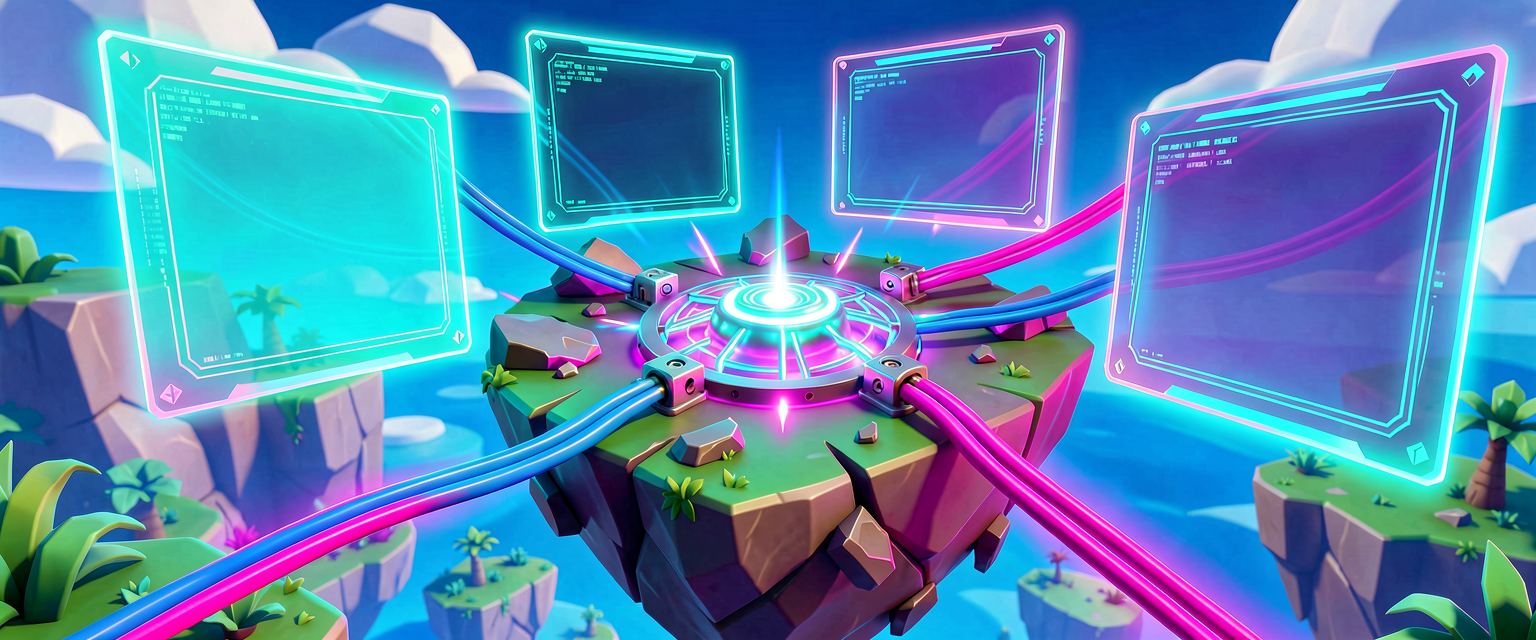
The Brain Dead Guide to Plugging In Your Chaos: Adding Devices in Verse
The Brain Dead Guide to Plugging In Your Chaos: Adding Devices in Verse
So you’ve got a blank island. It’s quiet. Too quiet. It needs more explosions, more loot, and definitely more ways for your friends to fail. In Fortnite Creative, devices are the hardware—the triggers, spawners, and scoreboards—that make your island do stuff. But if you want to control them with code, you need to know how to add them to your Verse script so your code can actually talk to them.
This isn’t just about clicking buttons in the editor. This is about teaching your Verse code to recognize the physical objects you’ve placed in the world. If you don’t "add" the device to your code, your code is just shouting into the void. Let’s fix that.
What You'll Learn
- The Scene Graph: Why devices are just "actors" in the world that your code needs to find.
- Device Binding: How to connect a specific in-game device (like a Trigger) to a variable in your Verse script.
- Event Listening: How to make your code wait for a device to do something (like being pressed).
- The "Plug-In" Method: The step-by-step process of linking UEFN devices to Verse variables.
How It Works
Think of your Fortnite island like a giant Rube Goldberg machine. You have a ball, a ramp, a fan, and a bell. In the editor, you place these items. In Verse, you write code to tell the fan to turn on when the ball hits the ramp.
But here’s the catch: Your code doesn’t know where the fan is.
In programming, we use a concept called the Scene Graph. Imagine the scene graph is the island’s inventory list. Every single thing in your world—a tree, a wall, a player spawner, a trigger—is an entry on that list. When you write Verse code, you are writing instructions that reference specific entries on that list.
The Variable = The Plug
In Verse, a variable is just a named container for data. Think of a variable like a labeled power strip. You have one power strip (your code) and many outlets (your devices). You need to plug the specific outlet (the device in the editor) into the specific labeled slot (the variable in your code).
If you don’t plug it in, the code can’t send power (events) to the device.
The Event = The Button Press
Devices don’t just sit there. They have events. An event is something that happens to the device.
- Trigger: The event is "Player Interacts."
- Player Spawner: The event is "Player Respawned."
- Timer: The event is "Time’s Up."
Your Verse code’s main job is often just to listen for these events. When the event fires, your code says, "Aha! The trigger was pressed! Now let’s do the thing."
Let's Build It
We’re going to build a simple "Chaos Button." When a player presses it, they get a random weapon.
To do this, we need two things in the editor:
- A Trigger device (the button).
- An Item Granter device (the loot drop).
Here is how we connect them in Verse.
Step 1: The Editor Setup
- Place a Trigger device anywhere on your map. Name it
ChaosTriggerin the properties panel (so you can find it easily). - Place an Item Granter device nearby. Set it to give a random weapon. Name it
ChaosGranter. - Crucial Step: Do not connect them with wires yet. We are going to control them with code.
Step 2: The Verse Code
Open the Verse editor for your island. We need to create a "Device" variable for our trigger.
using { /Fortnite.com/Devices }

# This is our main script. Think of it as the brain of the island.
ChaosButton = script() override {
    # 1. DEFINE THE DEVICES
    # We are creating two variables: one for the Trigger, one for the Granter.
    # These act as the "plugs" we will connect in the editor.
    trigger_device: Device = Device{}
    granter_device: Device = Device{}

    # 2. THE MAIN LOOP
    # This function runs forever once the game starts.
    Run() = async {
        # We wait here until the trigger device is activated.
        # 'trigger_device.Activated' is an event.
        # 'await' means "pause the code until this happens."
        await trigger_device.Activated

        # 3. DO THE THING
        # Now that the trigger was pressed, we tell the granter to fire.
        # 'Fire()' is a function (a command) that makes the item granter drop loot.
        granter_device.Fire()

        # Optional: Reset the trigger so it can be pressed again?
        # For this simple demo, we'll just let it be a one-time chaos button.
    }
}

# This line tells the game to start our ChaosButton script.
ChaosButton{}
Walkthrough: What Just Happened?
trigger_device: Device = Device{}: This line creates a placeholder. It’s like buying a power strip but not plugging anything into it yet. The typeDevicetells Verse, "This variable holds a Creative Device, not a number or a string."await trigger_device.Activated: This is the magic line.Activatedis an event that fires when a player presses the trigger.awaittells the code to pause and wait patiently. The code won’t move to the next line until someone presses that trigger in the game.granter_device.Fire(): Once the pause is over, this line executes. It calls theFirefunction on the Item Granter. A function is a command you give to an object.Fire()tells the granter to drop its contents.
Connecting the Dots in UEFN
Now, go back to the Unreal Editor for Fortnite (UEFN). You can’t just leave the code alone. You have to tell the code which devices to use.
- Select your Trigger device in the editor.
- In the Verse section of the properties panel, look for the variable name we used:
trigger_device. - Drag and drop your Trigger device from the scene onto that variable slot.
- Do the same for the Item Granter with the
granter_devicevariable.
Boom. You have plugged the hardware into your software.
Try It Yourself
You’ve built a one-time chaos button. Let’s make it better.
Challenge: Modify the code so the button can be pressed multiple times. Right now, once the Run() function finishes, the script might stop listening (depending on your exact setup).
Hint: Look into the Loop. In programming, a loop is like a respawn timer—it keeps restarting the same action over and over. You can wrap your await and Fire() commands inside a while loop to make the button repeatable.
Don’t forget to update the editor bindings if you change variable names!
Recap
- Devices are the physical objects in your island (triggers, spawners, etc.).
- Variables in Verse are the "plugs" you use to connect your code to those devices.
- Events (like
Activated) are the signals devices send when something happens. - Functions (like
Fire()) are the commands you send to devices to make them act. - Always remember: Code doesn’t know where your devices are until you drag them onto the variables in the UEFN properties panel.
References
- https://dev.epicgames.com/documentation/en-us/uefn/verse-stronghold-template-4-add-devices-in-unreal-editor-for-fortnite
- https://dev.epicgames.com/documentation/en-us/fortnite-creative/explosive-device-design-example-in-fortnite-creative
- https://dev.epicgames.com/documentation/en-us/fortnite/explosive-device-design-example-in-fortnite-creative
- https://dev.epicgames.com/documentation/en-us/fortnite/build-your-own-lego-music-concert-in-fortnite-creative
- https://dev.epicgames.com/documentation/en-us/fortnite/using-matchmaking-portal-devices-in-fortnite-creative
Verse source files
- 01-fragment.verse · fragment
Turn this into a guided course
Add 3. Add Devices to your free study plan — we'll suggest related pages and stitch the lot into one compile-checked, self-guided lesson with worked examples and quizzes.
References
Original tutorial generated by Verse Island from the Verse/UEFN knowledge base, with references to the Epic Games sources above. Code is validated against the knowledge base.