VerseIsland
Feed Learn Leaderboard Guides Reference Explore Search Docs Verse Library
Sign in
Feed Learn 📖 Codex Leaderboard Guides Reference Explore Search Docs Verse Library
Fortnite › Building & Props · Up to Fortnite · Building & Props · 71 of 104 in Building & Props
Browse Fortnite

Setting Up Teams and Classes

This section will show you how to determine and customize teams and classes for players.

Devices used:

  • 2 x Team Settings and Inventory
  • 2 x Class Designer
  • 2 x Class Selector

Team Setting and Inventory
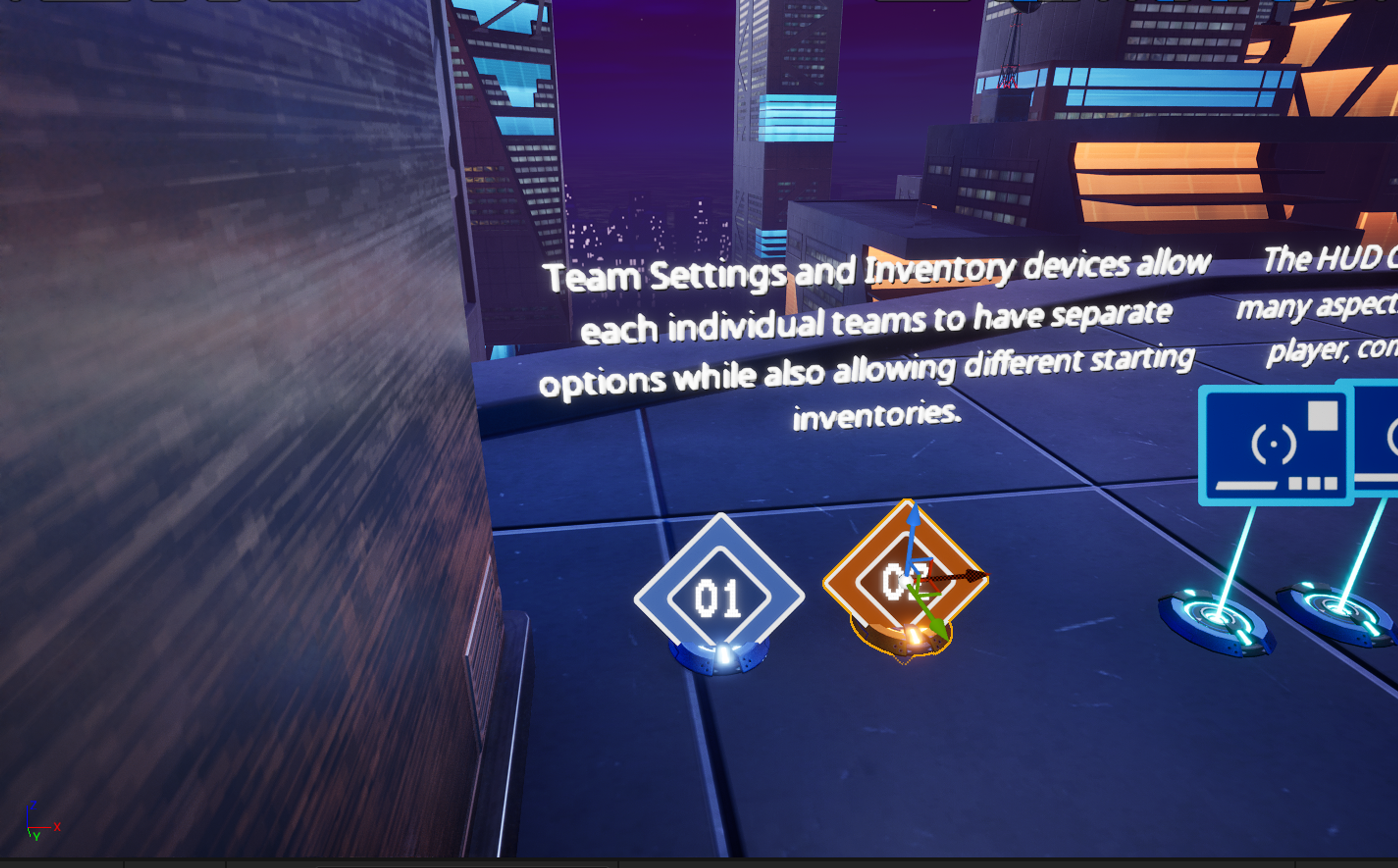
Team Setting and Inventory

Use Team Settings and Inventory devices to set team names and colors for the scoreboard display.

Place one device for each team in an area unseen by players. To set up the Prop team, configure the User Options to match the table below.
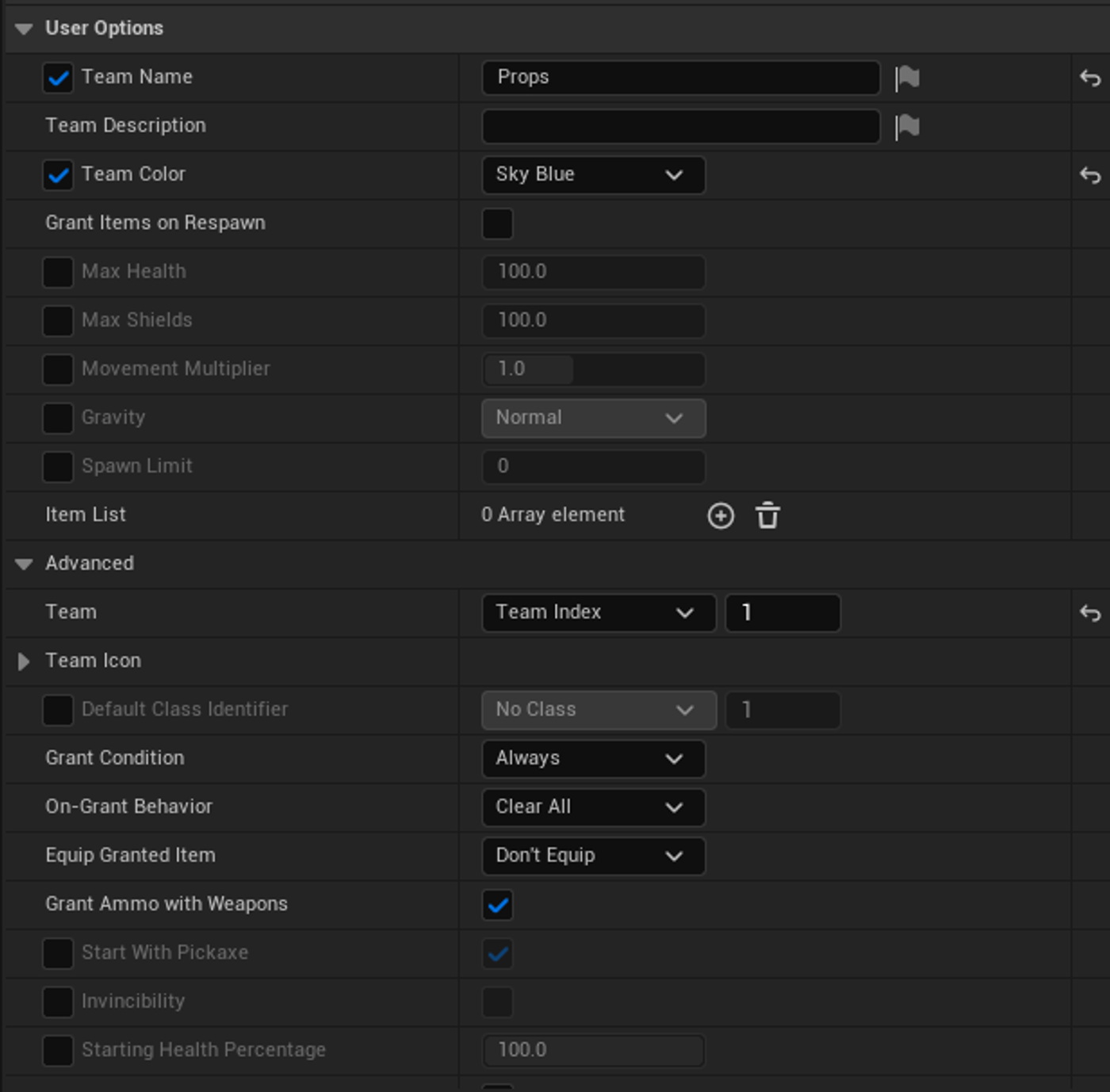
Prop Team Setting and Inventory

Option Value Explanation
Team Name Props Sets a text string that will be used to identify the team in the Scoreboard and HUD elements.
Team Color Sky Blue Assigns a color to the selected team that is used in the scoreboard, HUD, and on certain devices.
Team Team Index: 1 Specifies which team the settings on this device apply to.

You're reading a preview

The full reference is free for BrainDeadGuild Discord members — sign in to read it all, or open the original at the source.

Sign in with Discord — free for members Read the original at Epic Games

Sign in with your BrainDead.TV / BrainDeadGuild Discord account for full access.

Comments

    Sign in to vote, comment, or suggest an edit. Sign in
    📄
    Source
    Epic Games

    © Epic Games. Official Epic developer documentation, shown here as a reference with a link to the original. All rights remain with Epic Games. Terms ↗

    View original Sources & licensing
    Request removal
    Last updated May 12, 2026
    Keep exploring
    More in Building & Props · 71 of 104
    Prev
    prop hunt 03 playing effects on idle players in unreal editor for fortnite
    Next
    prop hunt 05 game loop and round management in unreal editor for fortnite
    Browse all files in this folder (A–Z)
    Next up
    • This section will show you how to determine and customize teams and classes for players.
    • This section will show you how to determine and customize teams and classes for players.
    • This section will show you how to determine and customize teams and classes for players.
    • Subclass In Verse
    • Prop Hunt 06 Adding The Full Script In Unreal Editor For Fortnite
    • Making a class `<concrete>` means all the fields of the class must have a default value. See [Specifiers and Attributes
    Related topics
    • Verse Prop Hunt Template 4 Setting Up Teams And Classes In Unreal Editor For Fortnite Building & Props
    • Prop Hunt 03 Playing Effects On Idle Players In Unreal Editor For Fortnite Building & Props
    • Prop Hunt 05 Game Loop And Round Management In Unreal Editor For Fortnite Building & Props
    • Verse Prop Hunt Template In Unreal Editor For Fortnite Building & Props
    • Prop Hunt 10 Customizing The Gameplay In Unreal Editor For Fortnite Building & Props

    Related

    Open in graph →

    Linked docs

    • Using Team Settings And Inventory Devices In Fortnite Creative
    • Using Class Designer Devices In Fortnite Creative
    • Using Class Selector Devices In Fortnite Creative

    Related topics

    • Verse Prop Hunt Template 4 Setting Up Teams And Classes In Unreal Editor For Fortnite
    • Prop Hunt 03 Playing Effects On Idle Players In Unreal Editor For Fortnite
    VerseIsland · an archipelago of Verse & UEFN knowledge
    🗺️ Island atlas Learn Guides History About & Press Sources & Licensing Status

    Not affiliated with Epic Games. Fortnite, UEFN, Unreal Engine, and Verse are trademarks of Epic Games, Inc. Content is attributed to its source — see Sources & Licensing.

    🦜

    Scout · your island guide

    The Isle of Verse