
Drop the Beat: Music & Loops with the Radio Device
Drop the Beat: Music & Loops with the Radio Device
We have atmosphere (Part 1) and cues (Part 2). Now for the thing that actually makes a nightclub a nightclub: music. Fortnite has a device purpose-built for curated, looping soundtracks — the Radio Device — and it works a little differently from the Audio Player, in a way worth understanding.
Audio Player vs. Radio: who's listening?
<!-- section-art:audio-player-vs-radio-who-s-listening -->
Selective Audio Beam
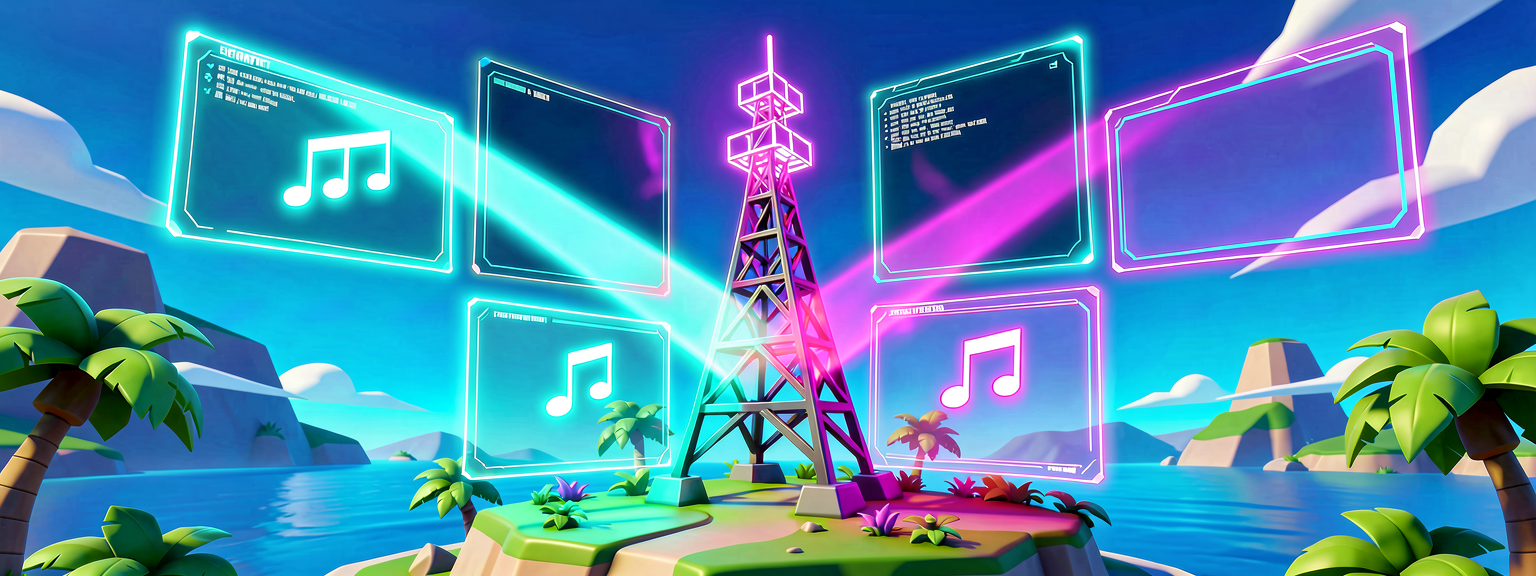
The Audio Player Device plays into the world — anyone in range hears it. The Radio Device flips the model: it plays to a list of registered agents. You tell it who should hear the music, then press Play.
A Radio Device plays curated, looping music to the agents you register.
Register(Agent)adds a listener;Play()starts the set;Stop()ends it;Unregister(Agent)drops one listener andUnregisterAll()clears them all.
Why register at all? Because music is often personal or zoned — a player in the VIP lounge might hear a different track than one on the main floor. Registration gives you that control. For a single shared soundtrack, the move is simple: register everyone.
The core pattern
# A Radio Device plays curated, looping music. Unlike the Audio Player, you
# Register the agents who should hear it, then Play(). Registering per-player
# lets each person hear their own soundtrack; Play() with nobody special
# registered plays the device's music out into the world from its position.
DanceFloorRadio.Register(Player)
DanceFloorRadio.Play()
Register, then play. That's the rhythm.
The full music device
This device registers everyone in the match, starts the set, and exposes two helpers — one to add a late-joiner, one to cut the music for an announcement:
What's new here:
1. Getting the player list. GetPlayspace().GetPlayers() is the standard way to ask "who's in this match?" GetPlayspace() (from /Fortnite.com/Game) hands back the match's playspace; GetPlayers() returns an array of the current players. We loop over them with for and register each.
2. player is an agent. Register wants an agent, and every player is an agent (a player is a specific kind of agent), so passing players straight in just works. That subtype relationship is why the same audio APIs accept either.
3. Helper methods for live control. AddListener and KillTheMusic aren't called automatically — they're hooks you'd wire to other events (a player-spawn event, a round-end trigger). They show the everyday Radio verbs: register more listeners on the fly, and Stop() to bring sudden silence.
Looping is the default
The Radio Device is designed for music, so its tracks loop by nature — Play() starts the set and it keeps going until you Stop() it. You don't manage the loop yourself. To change tracks, you typically Stop(), swap the configured playlist/track in the editor or via a second Radio Device, and Play() again — a clean cut between songs.
When to reach for which device
<!-- section-art:when-to-reach-for-which-device -->
Audio Device Selection
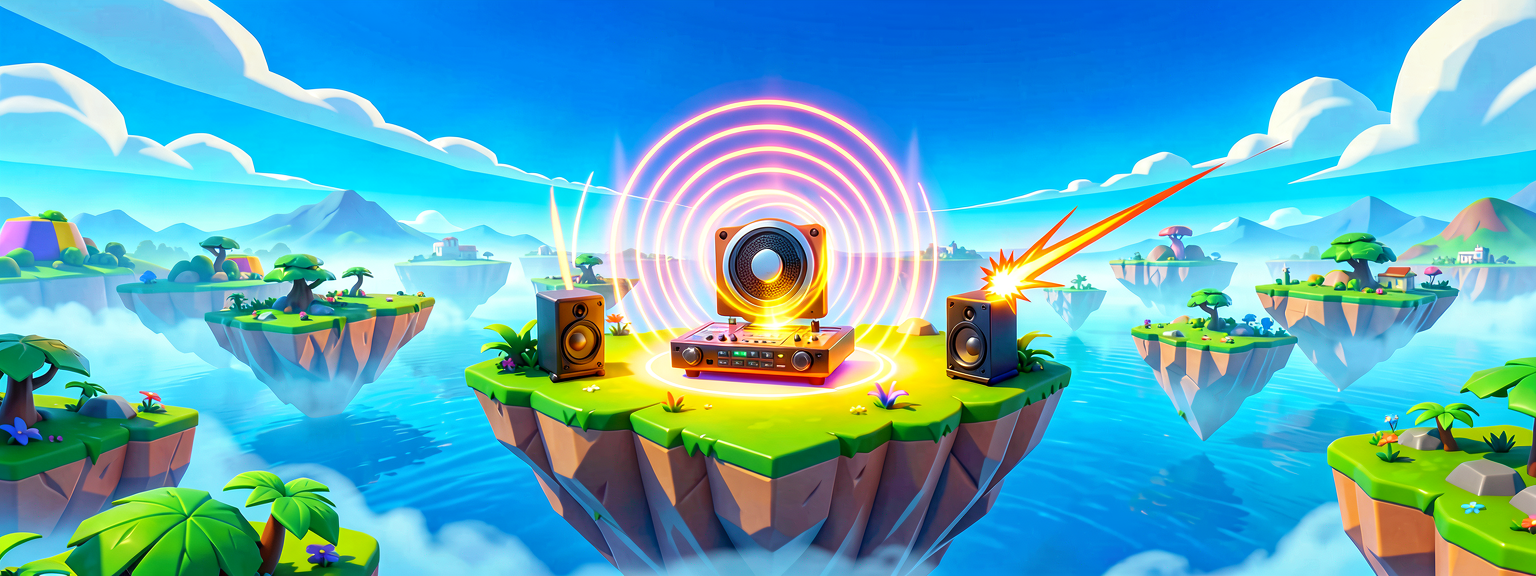
| You want… | Use |
|---|---|
| A positional effect anchored to a spot | Audio Player (Part 1–2) |
| A short cue fired on an event | Audio Player + Play() / Play(Agent) |
| Looping, curated music for a set of players | Radio Device + Register / Play |
| Music just one player hears (zoned/VIP) | Radio Device, register only that agent |
Recap
- The Radio Device plays looping, curated music to registered agents — register first, then
Play(). GetPlayspace().GetPlayers()gets the current players; loop andRegistereach to make the whole match the audience.- A
playeris anagent, so it slots straight intoRegister(Agent:agent). Stop()cuts the music;Unregister/UnregisterAlldrop listeners. Tracks loop by default.
Last stop — the Capstone: Build an Interactive Jukebox — where a button on the stage lets players toggle the music on and off, pulling the whole series together.
Get the complete code — free
You've read the full walkthrough. The complete, copy-paste-ready Verse solution is free for members — sign in to unlock it.
Free with your BrainDead.TV / BrainDeadGuild Discord account. The walkthrough above is always free.
Verse source files
- 01-fragment.verse · fragment
- 02-device.verse · device
Check your understanding
Test yourself with an interactive quiz and track your progress + earn XP — free for members.
Turn this into a guided course
Add UEFN audio — radio_device, Register/Play/Stop, per-player music, looping soundtracks to your free study plan — we'll suggest related pages and stitch the lot into one compile-checked, self-guided lesson with worked examples and quizzes.
References
Original tutorial generated by Verse Island from the Verse/UEFN knowledge base, with references to the Epic Games sources above. Code is validated against the knowledge base.