
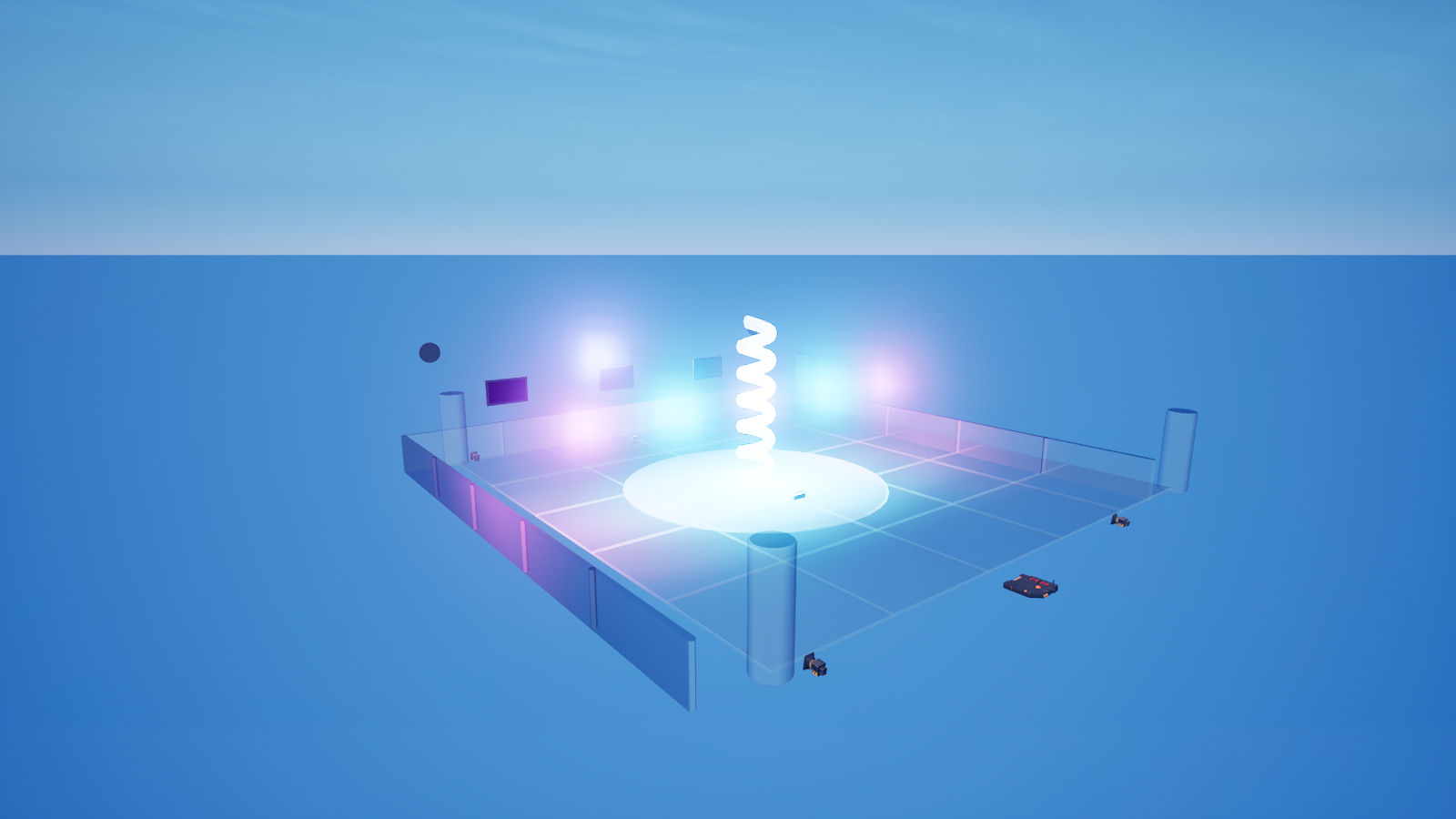
Turn Up the Atmosphere: Positional & Ambient Sound
Turn Up the Atmosphere: Positional & Ambient Sound
Welcome to Scene Graph: Sound. The Animation series made your world move; this one makes it heard. A space with no audio feels like a showroom after hours — technically finished, emotionally empty. Over four lessons we'll build the soundscape of a neon nightclub: a humming ambient bed, sound effects that fire as players move, looping music on the dance floor, and a player-operated jukebox to tie it all together.
We'll stage everything in a real Fortnite club set — mirrored dance floor, speaker stacks, glowing bar — so the screenshots show the game-native way to wire audio, not a graybox.
The one idea: sound lives on a device
<!-- section-art:the-one-idea-sound-lives-on-a-device -->
Positional Audio
Unlike a transform (which every entity carries), audio in Fortnite plays through a placed device. The workhorse is the Audio Player Device. You drop it in the level, assign it a sound asset in its Details panel, and from there your Verse code just presses Play and Stop.
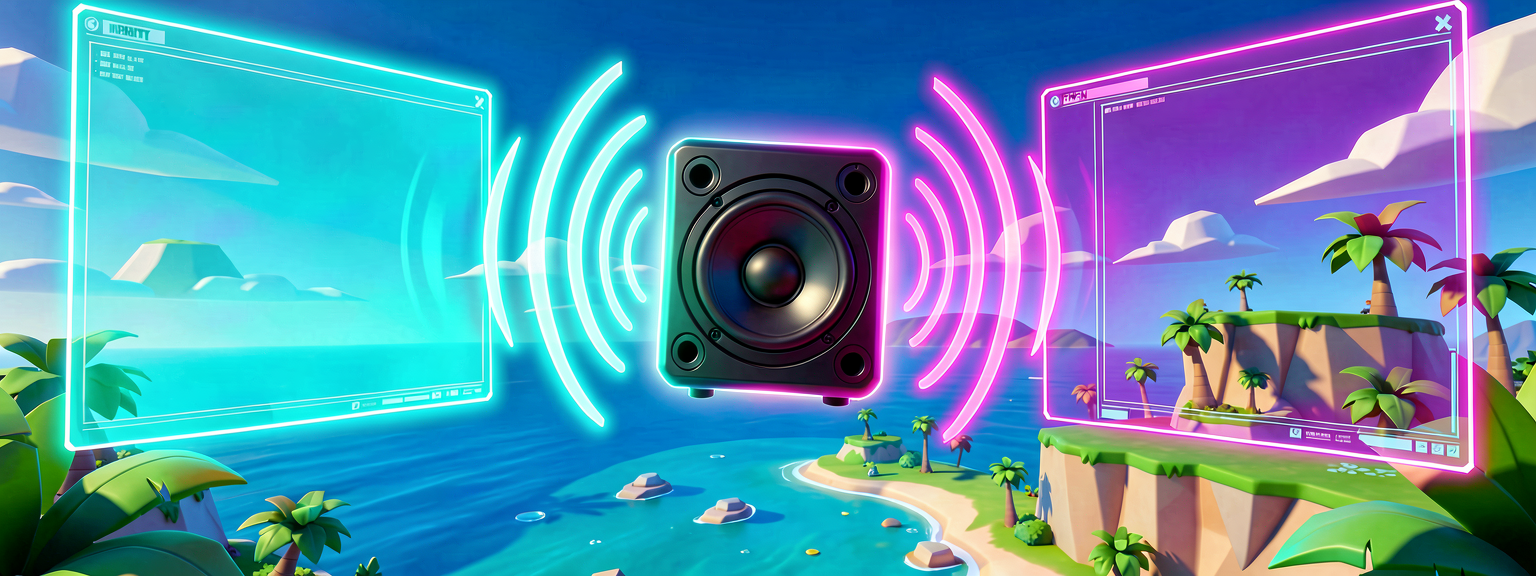
An Audio Player Device plays one sound asset from its position in the world. Because it has a place, its output is positional (3D): the sound swells as a player walks toward the device and fades as they walk away. That spatial falloff is free — you don't compute distances yourself.
The split is the same philosophy you met in the Scene Graph series: the device lives in the editor, the behavior lives in code. You wire the placed device into your script through an @editable reference:
# An Audio Player Device is a placed device, so your code talks to it through
# an @editable reference you wire up in the editor. Calling Play() starts its
# sound; because the device sits at a spot in the world, the sound is 3D and
# positional — louder as a player walks toward it, quieter as they leave.
@editable
AmbientHum : audio_player_device = audio_player_device{}
The @editable keyword exposes the slot in the Details panel. You drag your placed Audio Player Device onto it, and now AmbientHum in code is that device in the world.
Play an ambient bed when the round starts
An ambient bed is the continuous, looping atmosphere of a space — the synth pad and low neon buzz that says "you're in a club." Set the device's sound to a looping asset and check Play on Start in its options, and it needs no code at all. But driving it from Verse gives you control: you decide exactly when it begins, and you can stop or restart it later.
Here's the complete device. Place an Audio Player Device, wire it in, and the hum starts the instant the match begins:
using { /Fortnite.com/Devices }
using { /Verse.org/Simulation }
using { /UnrealEngine.com/Temporary/Diagnostics }

# AMBIENT BED: play a looping atmosphere sound the moment the round starts.
#
# Place an Audio Player Device in the world, point it at a looping sound
# (a synth pad, a crowd murmur, neon buzz), and wire it into the @editable
# slot below. Because the device lives at a position in the level, the sound
# is positional/3D: it swells as players approach the speaker and fades as
# they walk away. No per-frame code — Play() once and the engine does the rest.
ambient_sound_device := class(creative_device):

    # Drag your placed Audio Player Device onto this slot in the Details panel.
    @editable
    AmbientHum : audio_player_device = audio_player_device{}

    OnBegin<override>()<suspends> : void =
        # Make sure the device is live, then start its (looping) sound.
        AmbientHum.Enable()
        AmbientHum.Play()
        Print("Ambient bed playing")
Read it top to bottom:
class(creative_device)— a complete, placeable device with its own behavior. (This is the device kind; the Animation lessons mostly used Scene Graph components. Audio in Fortnite is device-driven, so we work with devices here.)@editable AmbientHum— the wired reference to the speaker in the world.OnBegin<override>()<suspends>— runs once when the device wakes up.<suspends>marks it as code that can wait over time (we'll lean on that next lesson).Enable()— makes sure the device is active and allowed to play (a disabled Audio Player ignoresPlay).Play()— starts the assigned sound. If the asset is set to loop, it loops forever; the positional falloff is automatic.
Positional vs. 2D: a placement decision
Whether the sound is 3D-positional or a flat 2D bed is a property on the device, not something you code:
- Positional (default) — anchored to the device's location, with distance falloff. Use it for a jukebox, an arcade cabinet, a waterfall — anything the player should be able to walk up to.
- 2D / non-positional — same volume everywhere. Use it for global music or UI stingers that shouldn't depend on where the player stands.
Drop several positional Audio Players around your club — one buzzing each neon sign, one at each speaker stack — and players hear a living, directional mix as they move. That's the whole magic of placing audio in the world.
Stopping and restarting
<!-- section-art:stopping-and-restarting -->

Sound Reset
Because your code holds the device, you can silence it any time — for a cutscene, an intermission, or a dramatic beat:
Stop() halts whatever the device is currently playing; a later Play() starts it again from the top. You'll use this pairing constantly — and in the capstone it becomes a real on/off jukebox.
Recap
- Fortnite audio plays through a placed device; the Audio Player Device is the workhorse.
- You wire the placed device into code with an
@editablereference, then callPlay()/Stop(). - Sound from a positioned device is 3D / positional for free — it falls off with distance, so players can walk toward and away from it.
- Positional vs. 2D is a property on the device, not code — pick per sound.
Enable()beforePlay()guarantees a live device.
Next — Part 2: Hit That Cue — we fire a one-shot sound effect the instant a player steps onto a pad, using a Trigger Device.
Get the complete code — free
You've read the full walkthrough. The complete, copy-paste-ready Verse solution is free for members — sign in to unlock it.
Free with your BrainDead.TV / BrainDeadGuild Discord account. The walkthrough above is always free.
Verse source files
- 01-fragment.verse · fragment
- 02-device.verse · device
- 03-fragment.verse · fragment
Check your understanding
Test yourself with an interactive quiz and track your progress + earn XP — free for members.
Turn this into a guided course
Add UEFN audio — audio_player_device, positional 3D sound, Play/Stop, ambient loops to your free study plan — we'll suggest related pages and stitch the lot into one compile-checked, self-guided lesson with worked examples and quizzes.
References
Original tutorial generated by Verse Island from the Verse/UEFN knowledge base, with references to the Epic Games sources above. Code is validated against the knowledge base.