
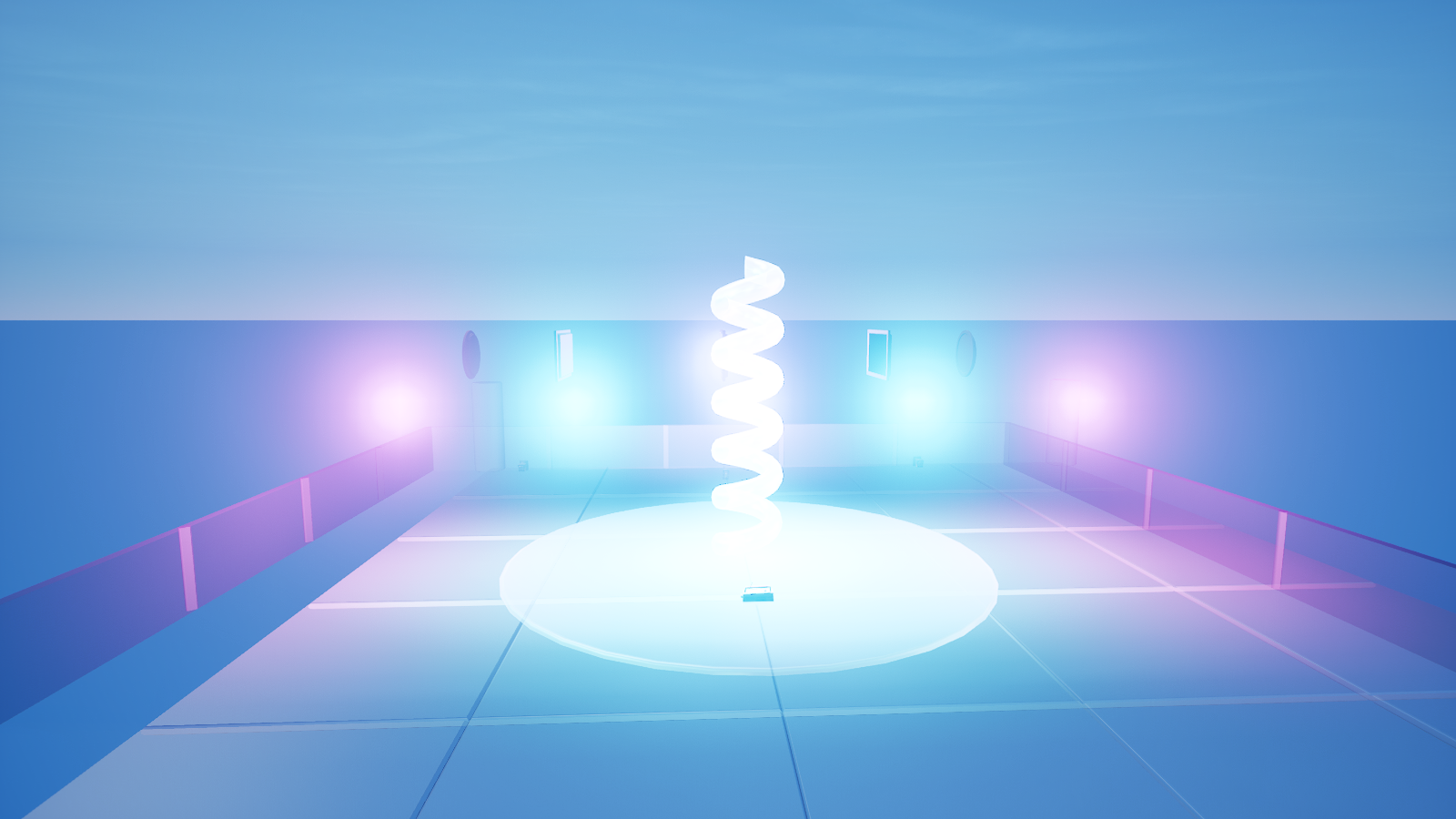
Capstone: Build an Interactive Jukebox
Capstone: Build an Interactive Jukebox
This is where the series pays off. You can play ambient beds (Part 1), fire cues on triggers (Part 2), and loop music for a crowd (Part 3). Now we build the thing that makes a club interactive: a jukebox players walk up to, press, and toggle the music — on, off, on, off.
The insight: a jukebox is a button + a speaker + one bit of memory
<!-- section-art:the-insight-a-jukebox-is-a-button-a-speaker-one- -->
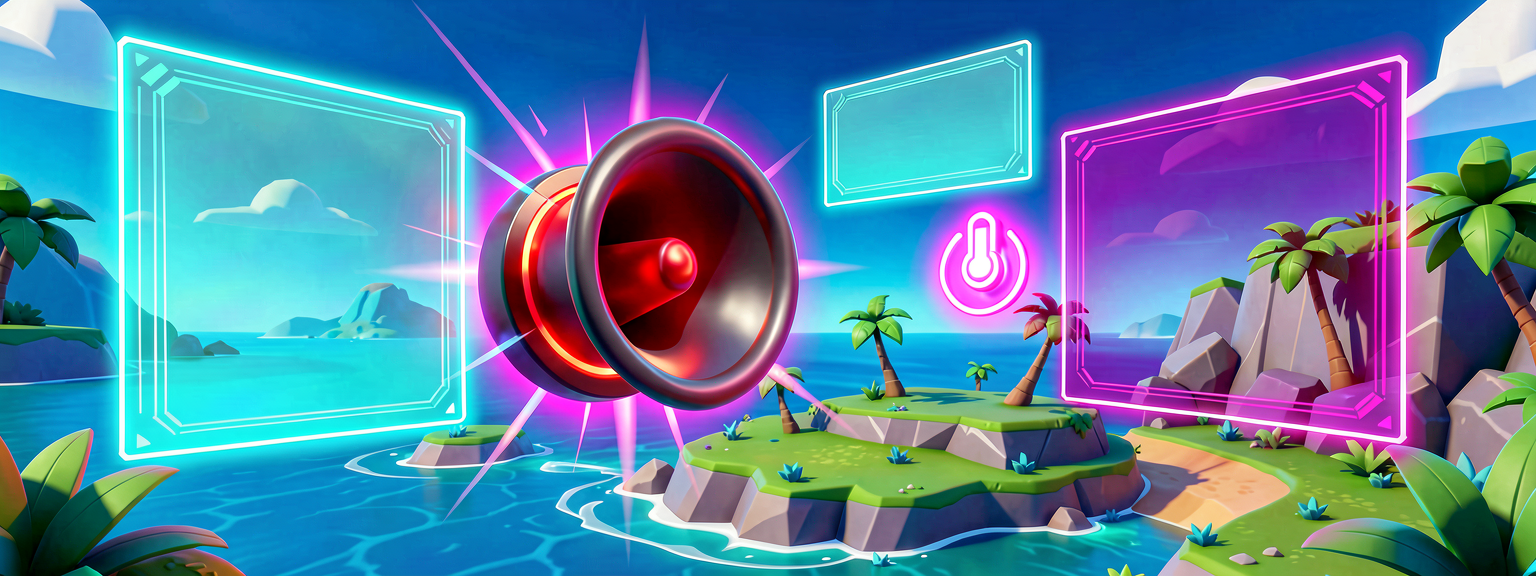
Toggle Logic
There's no special "jukebox device." A jukebox is three things you already understand, wired together:
- A Button Device — the face the player holds-to-use.
- An Audio Player Device — the speaker that actually plays the track.
- One
logicflag — remembering whether the music is currently on, so each press does the opposite of the last.
That flag is the whole trick. Without it, every press would just call Play() again. With it, a press toggles.
The button gives you the press
A Button Device fires InteractedWithEvent when a player holds-to-use it. Unlike the trigger in Part 2, we'll Subscribe a handler rather than Await in a loop — for a button that just toggles, a subscription is the cleaner fit:
# The Button Device's InteractedWithEvent fires when a player holds-to-use it.
# Subscribe a handler and you have a one-line "press the jukebox" hook. We keep
# a var playing flag so each press TOGGLES the music: on, off, on, off.
JukeboxButton.InteractedWithEvent.Subscribe(OnButtonPressed)
Subscribe registers a function to run every time the event fires, and returns immediately — no loop, no waiting. The handler (OnButtonPressed) carries the rest of the logic.
The full jukebox device
Everything here is something you've met, now combined:
- An
@editabledevice reference (every lesson) — two of them: the button and the speaker. Play()/Stop()(Part 1) — the speaker verbs, now driven by a press instead of round-start.- An event handler (Part 2's
Await, here asSubscribe) —InteractedWithEventhands the handler theagentwho pressed. - State that drives behavior —
var IsPlaying : logic. Theif (IsPlaying?)reads the flag (the?succeeds when the logic istrue);set IsPlaying = ...updates it. This is the toggle.
The two finishing touches
1. A live label. SetInteractionText changes the prompt the player sees when looking at the button. We swap it between "Play the music" and "Stop the music" so the button always tells the truth about what it'll do next. It takes a message, not a string — so we wrap our text with a tiny <localizes> helper, StringToMessage, the standard idiom for turning a plain string into the localizable message UEFN devices expect.
2. Designer-tunable text. Both labels are @editable strings, so a designer can rename them ("Start the show" / "Cut the music") right in the Details panel — no recompile.
Wiring it up in the editor
The build, end to end:
- Place a Button Device on the stage (the jukebox face).
- Place an Audio Player Device at the speaker stack, set to a looping track.
- Add a Verse device running
jukebox_device, and drag the button intoJukeboxButtonand the speaker intoStageSpeakers. - Optionally retitle
StartLabel/StopLabelin the Details panel. - Press play, walk up to the button, hold-to-use — the music kicks in. Press again — silence.
You did it
<!-- section-art:you-did-it -->
Audio Mastery
You started this series with a silent room. You can now lay an ambient bed, fire cues off player movement, loop music for a whole lobby, and hand players a button that controls the soundtrack. That same toolkit drives in-game radios, arcade cabinets, boss-fight stingers, zone-based ambience, and a hundred other audio mechanics. The nightclub was just the stage.
Recap
- A jukebox is a button + an Audio Player + one
logicflag — no special device. InteractedWithEvent.Subscribe(handler)runs your handler on every press; the handler receives the pressingagent.- A
var ... : logicflag plusif (Flag?)/set Flag = ...is the standard toggle pattern. SetInteractionTexttakes amessage; wrap a string with a<localizes>helper to build one, and keep the label in sync with the state.- Everything is
@editable, so designers wire and tune the jukebox with no code changes.
Get the complete code — free
You've read the full walkthrough. The complete, copy-paste-ready Verse solution is free for members — sign in to unlock it.
Free with your BrainDead.TV / BrainDeadGuild Discord account. The walkthrough above is always free.
Verse source files
- 01-fragment.verse · fragment
- 02-device.verse · device
Check your understanding
Test yourself with an interactive quiz and track your progress + earn XP — free for members.
Turn this into a guided course
Add UEFN audio — button_device, InteractedWithEvent, toggle state, SetInteractionText, message to your free study plan — we'll suggest related pages and stitch the lot into one compile-checked, self-guided lesson with worked examples and quizzes.
References
Original tutorial generated by Verse Island from the Verse/UEFN knowledge base, with references to the Epic Games sources above. Code is validated against the knowledge base.