
Color-Changing Material Tutorial
If you create a tree or a sign, you might want to apply an effect to the material that the changes the color of the mesh, depending on its location in the world.
To apply a color-changing texture to the leaves of a tree mesh, for example, you would use the Sine node to target the world position of the mesh and modify the color as it changes position along the Z-axis.
To create this effect:
-
Add the following nodes to the configuration above in the Material Editor:
- Linear Interpolate node
- Sine node
- Divide node
- Component Mask node
- Absolute World Position node
- 2X Constant 3Vector expression node
-
Drag off the Absolute World Position node and plug it into the Component Mask node.
-
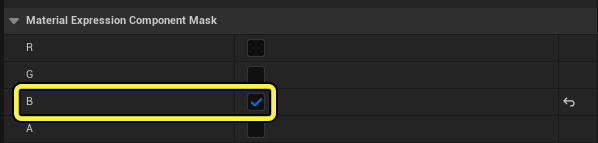
Select the Component Mask node, then check only the B option in the Material Expression Component Mask on the Details panel.
-
Drag off the Component Mask node and plug it into the Sine node.
-
Select the Sine node and change the Material Expression Sine value to 1200 in the Details panel.
You're reading a preview
The full reference is free for BrainDeadGuild Discord members — sign in to read it all, or open the original at the source.
Sign in with your BrainDead.TV / BrainDeadGuild Discord account for full access.